Build a page from sections

Put a page together from the site's own sections, on the page itself.

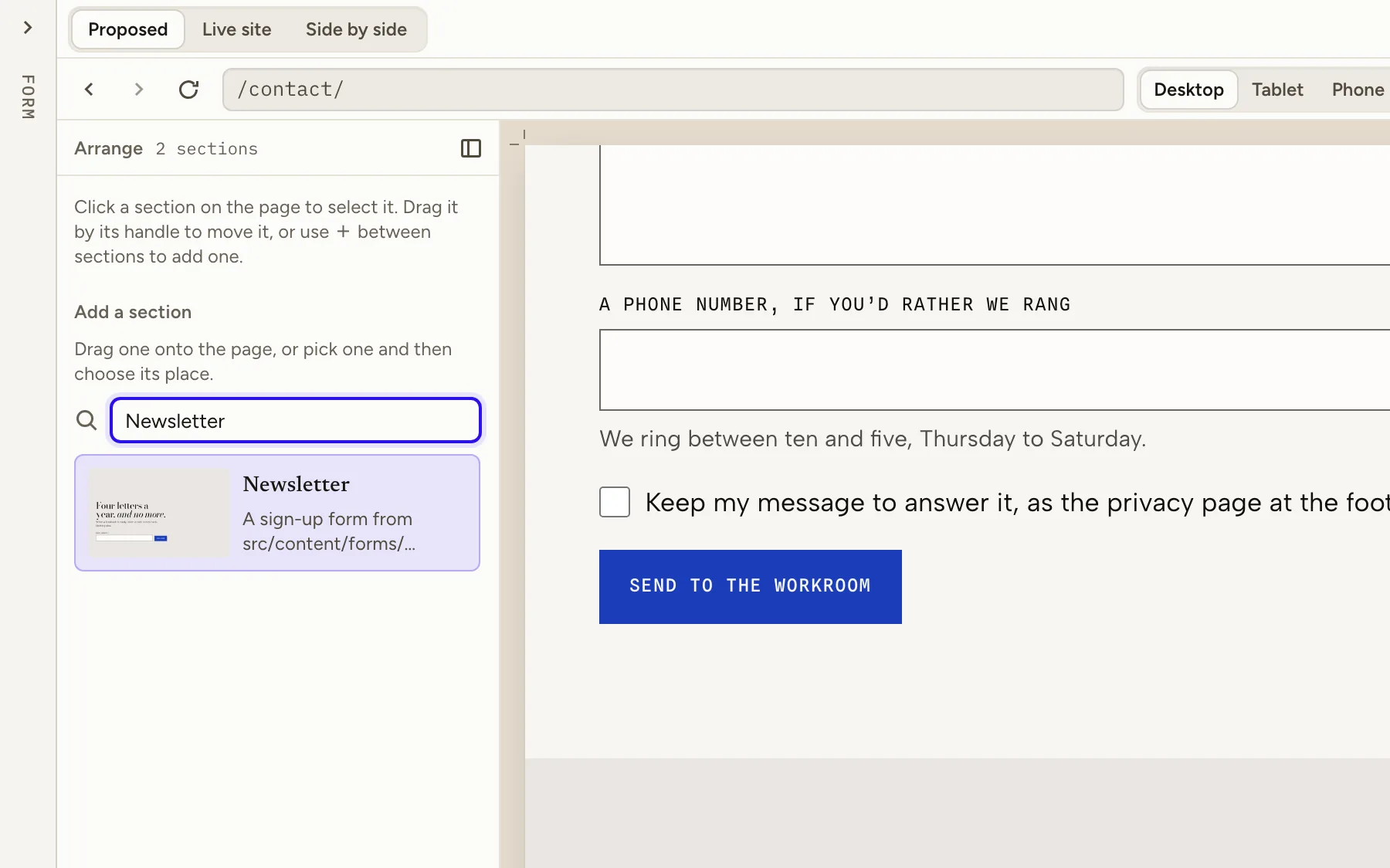
  1. Open the page in the editor and choose Arrange above it.

    You’ll see: Click a section on the page to select it and see its options; drag its handle to move it.

    The editor on the Caddow Contact page with Arrange chosen above the page: on the left the Arrange panel (2 sections) with Add a section and pictures of the site's own section types — Campaign hero, Photo and text, Lookbook grid — and the page itself on the right.
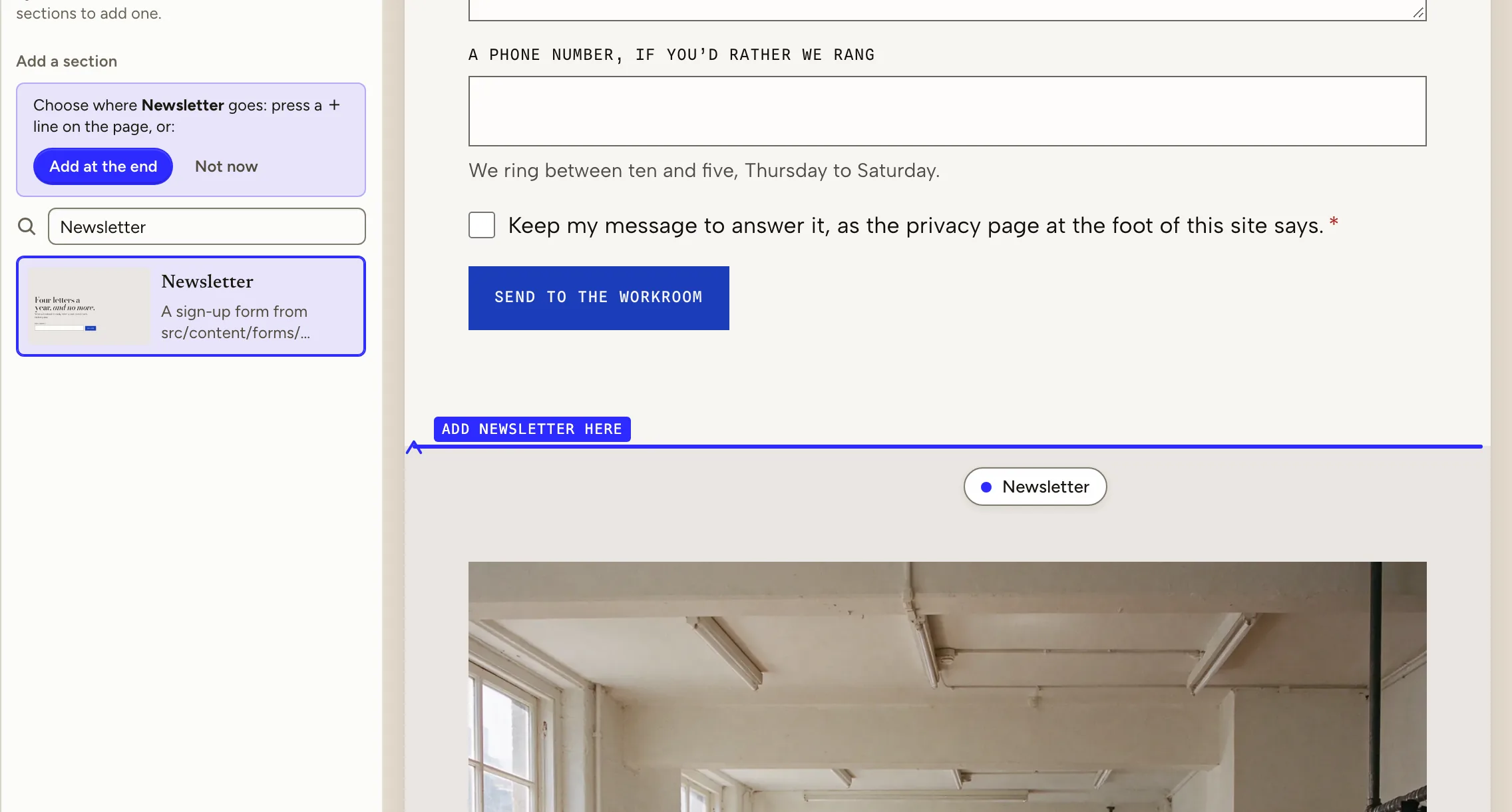
  2. Under Add a section, type in Find a section type… to narrow the list — here Newsletter.

    The Arrange panel with “Newsletter” typed in Find a section type…, leaving one picture: Newsletter — a sign-up form from the site's forms — beside the Contact page.
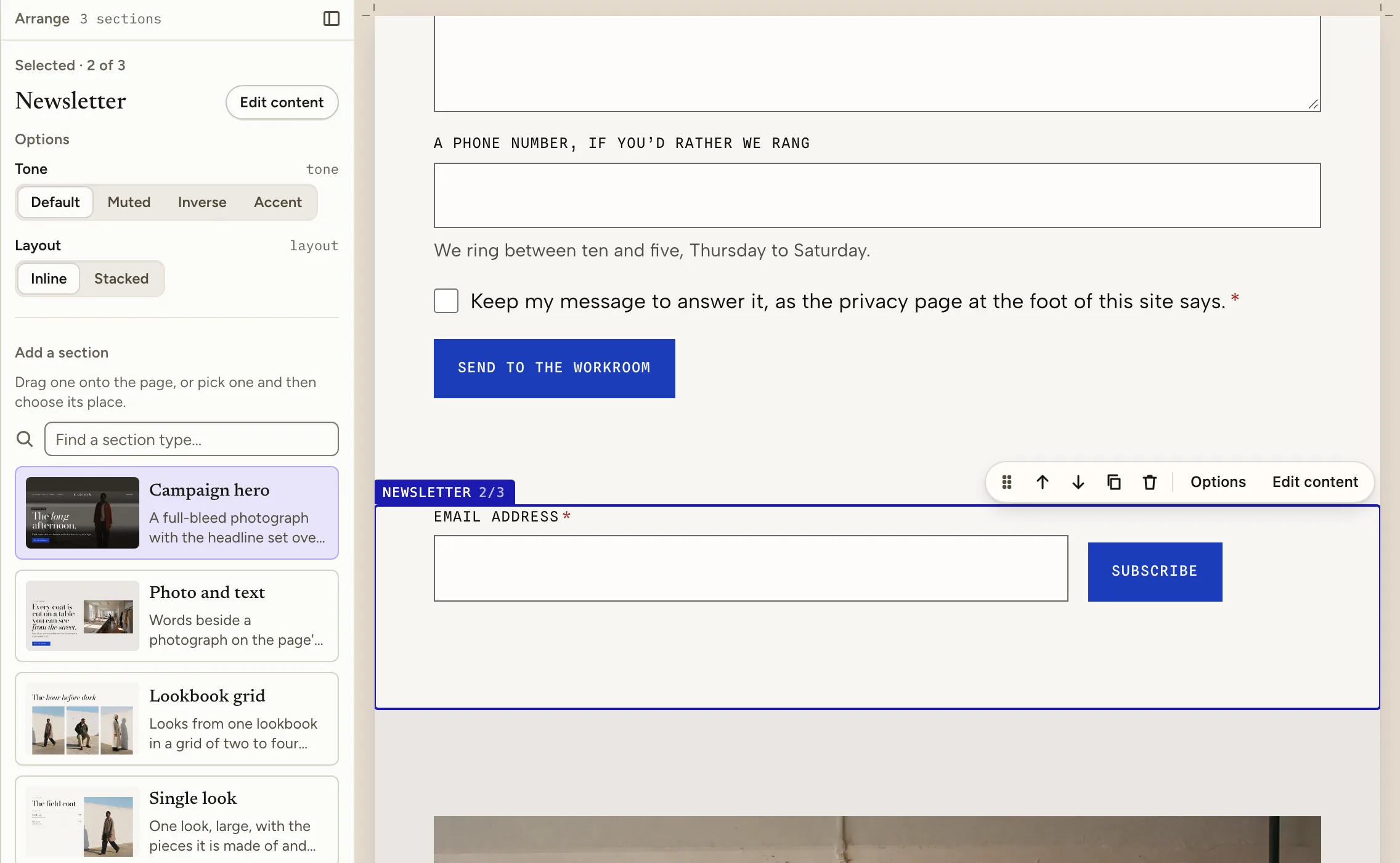
  3. Drag its picture onto the page. A line shows where it will land; Escape leaves everything as it was.

    Dragging the Newsletter picture onto the page: a blue line between the contact form and the next section, labelled ADD NEWSLETTER HERE, shows where it will land.
  4. Let go. The section arrives with the site's own layout and empty words; switch its Options in the panel, and Edit content opens its words in the form.

    You’ll see: Each move is one change waiting in Proof.
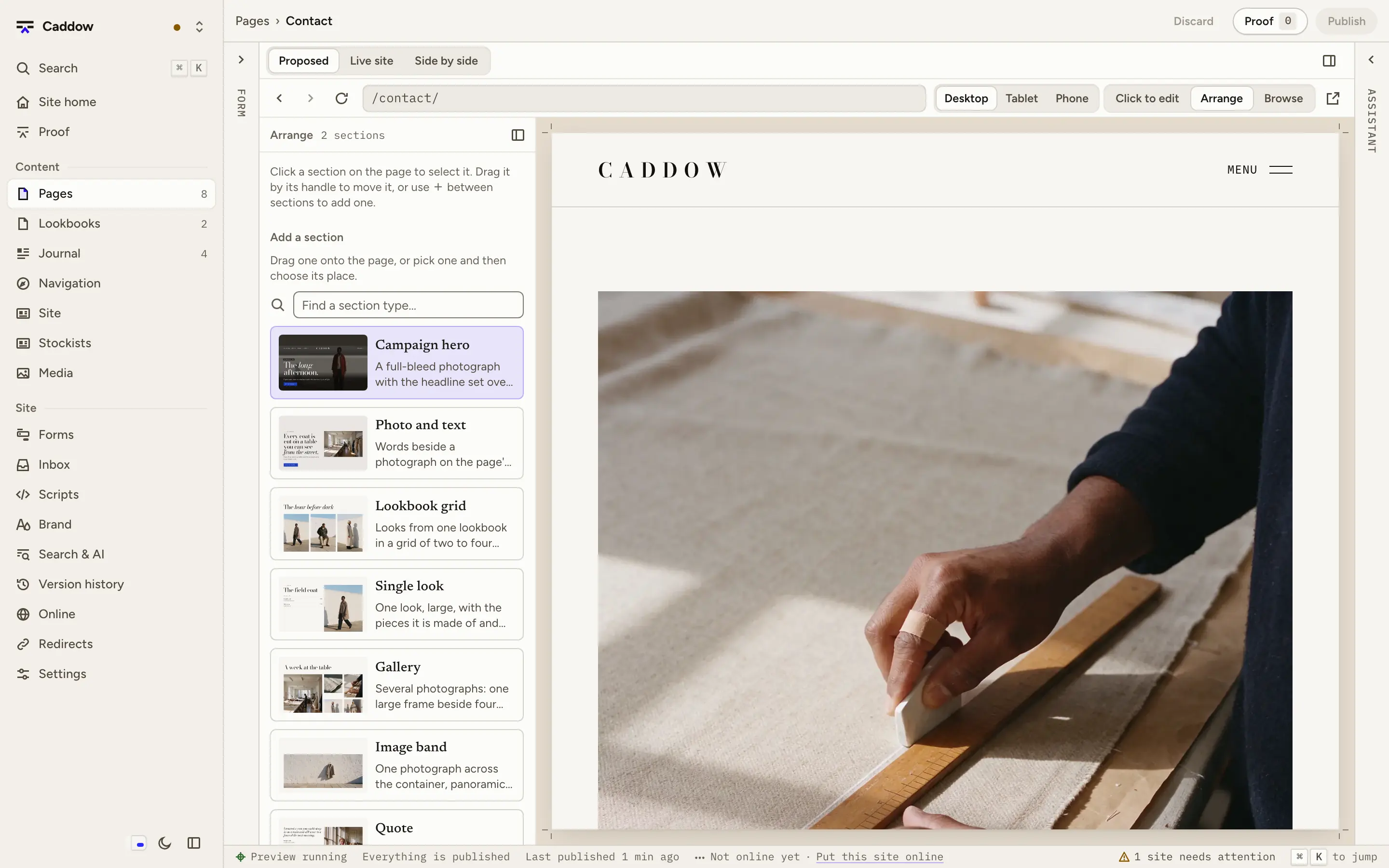
    The new Newsletter section on the Contact page, selected as Newsletter 2/3 with its toolbar — handle, up, down, duplicate, remove, Options, Edit content — and in the panel its options: Tone and Layout.