See the whole app.

Every picture here is a capture of Galley, most of them on Caddow — a fashion label we made up. Open any one to see it full size.

Change a page.

Three ways in. Each ends the same way, as a change waiting in Proof.

In the form

Every field of the page in the site’s own words, beside the page itself. An edit is saved as you type and marked Edited.

How to do it: In the form
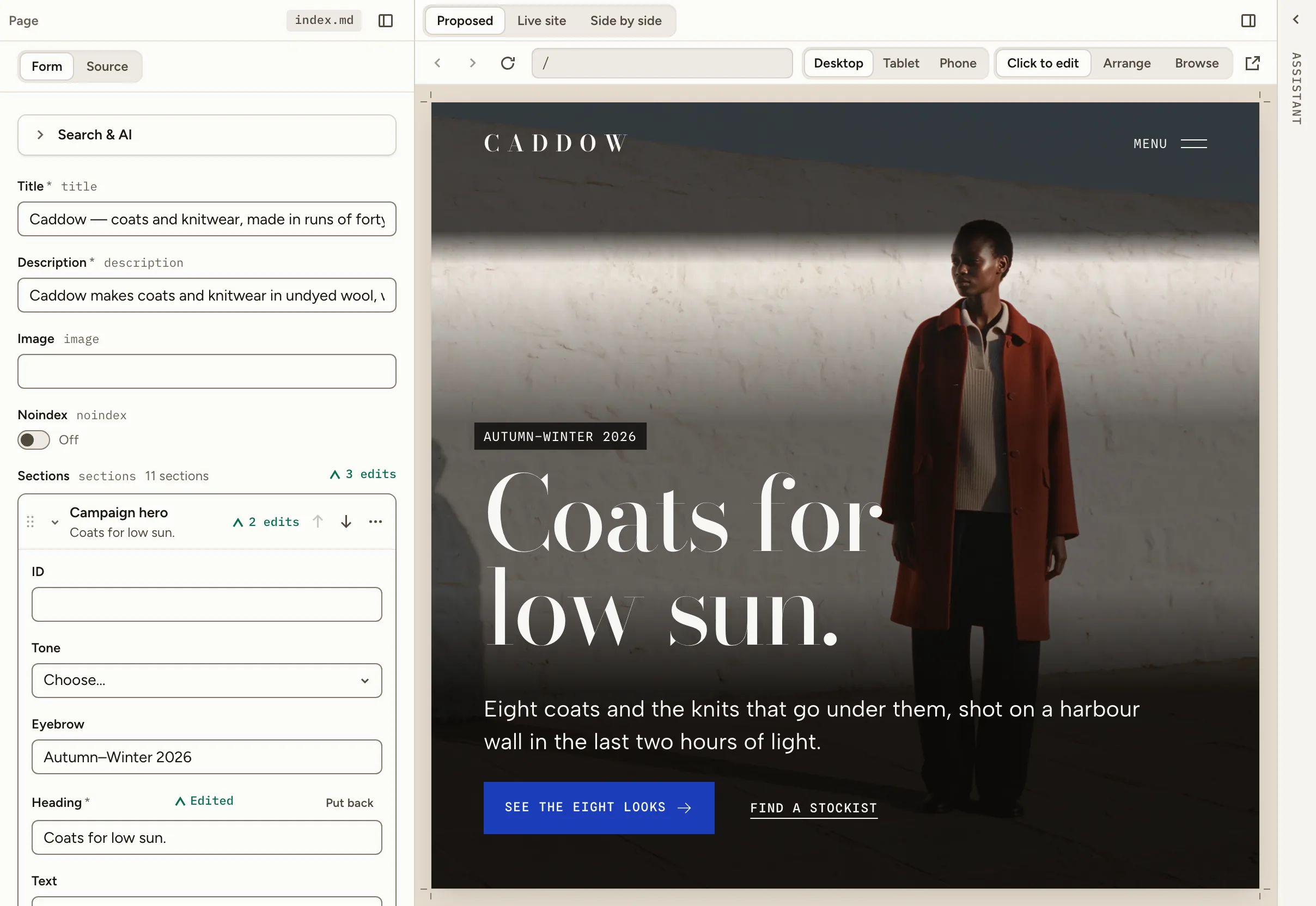
The editor on Caddow’s home page — the page’s form on the left with the Campaign hero section open and its Heading, “Coats for low sun.”, marked Edited beside a Put back button, and the page itself on the right, at its top, the campaign photograph under the heading Coats for low sun.
A close look at the form — the Campaign hero section with 2 edits, and its Heading field marked Edited, with Put back, holding “Coats for low sun.”

On the page

Click the words where they sit and type over them. When the same words come from two places, it asks which one you meant.

How to do it: On the page
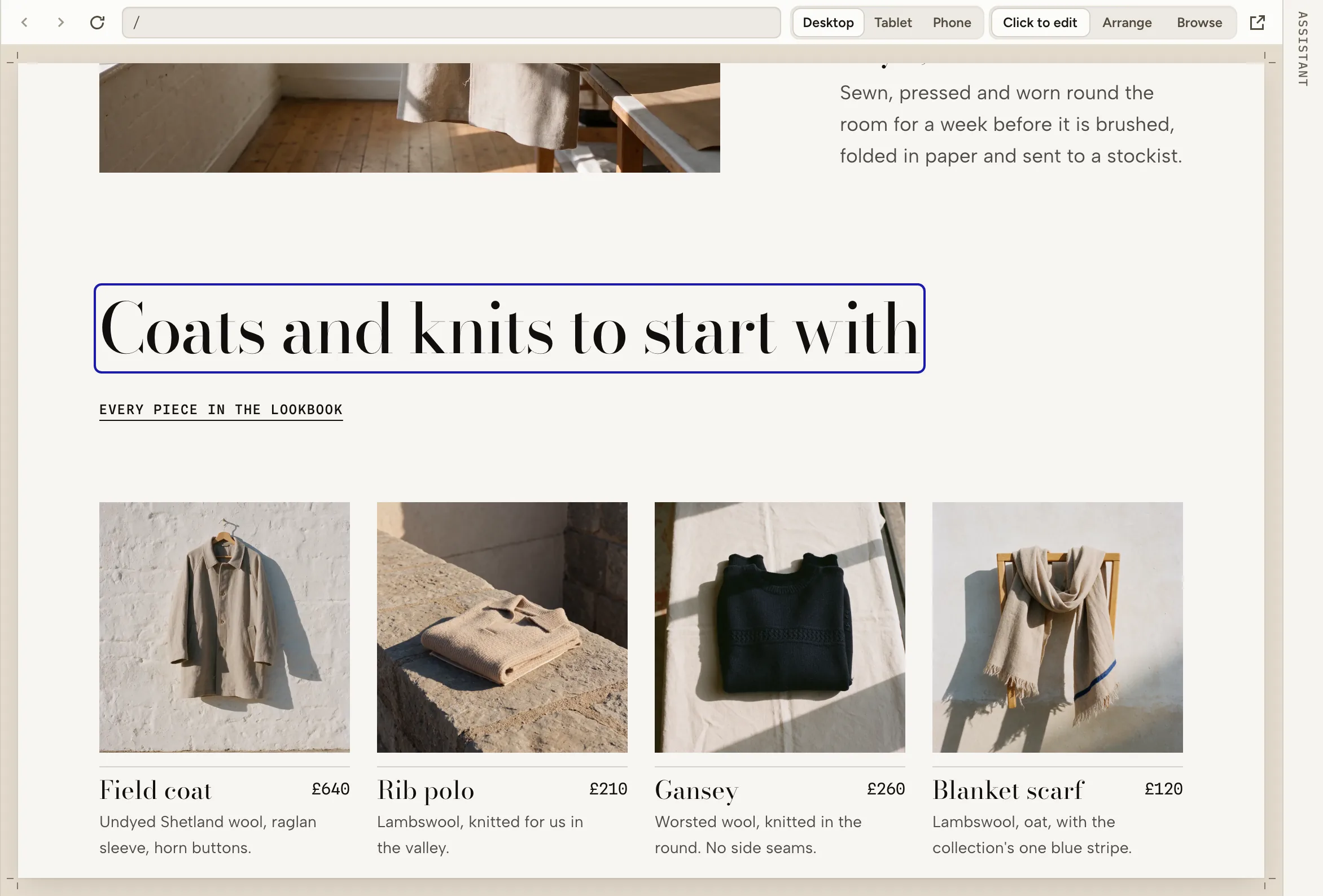
The Caddow home page in the editor with Click to edit chosen — the heading over four photographs of pieces retyped in place to “Coats and knits to start with”, outlined in blue.

By asking

Ask for a change in plain words. The assistant says exactly what it changed, and Undo puts it back.

How to do it: By asking
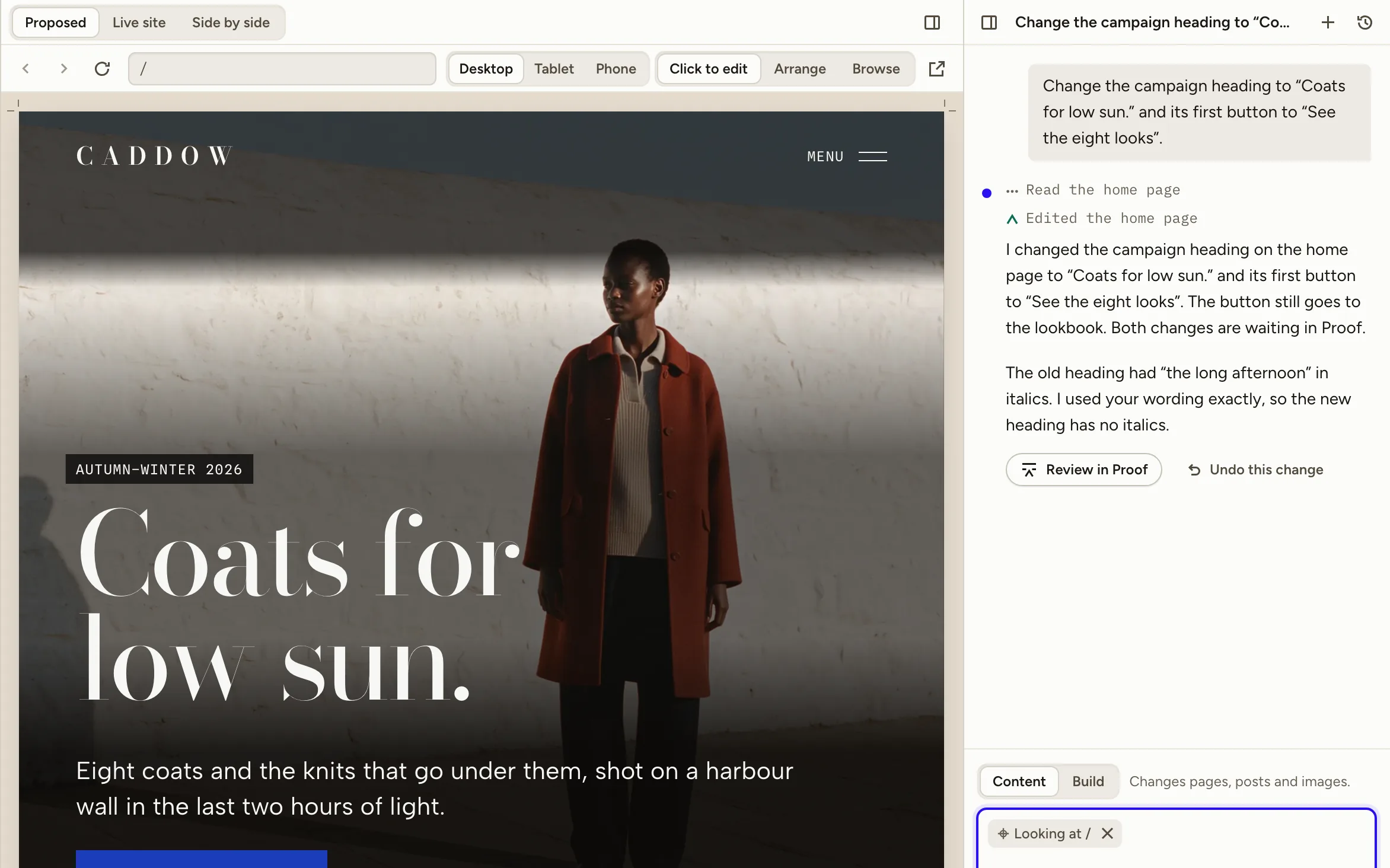
The assistant beside the Caddow home page — the request to change the campaign heading and its first button, the lines Read the home page and Edited the home page, the reply saying what it changed, and the buttons Review in Proof and Undo this change.

Light or dark

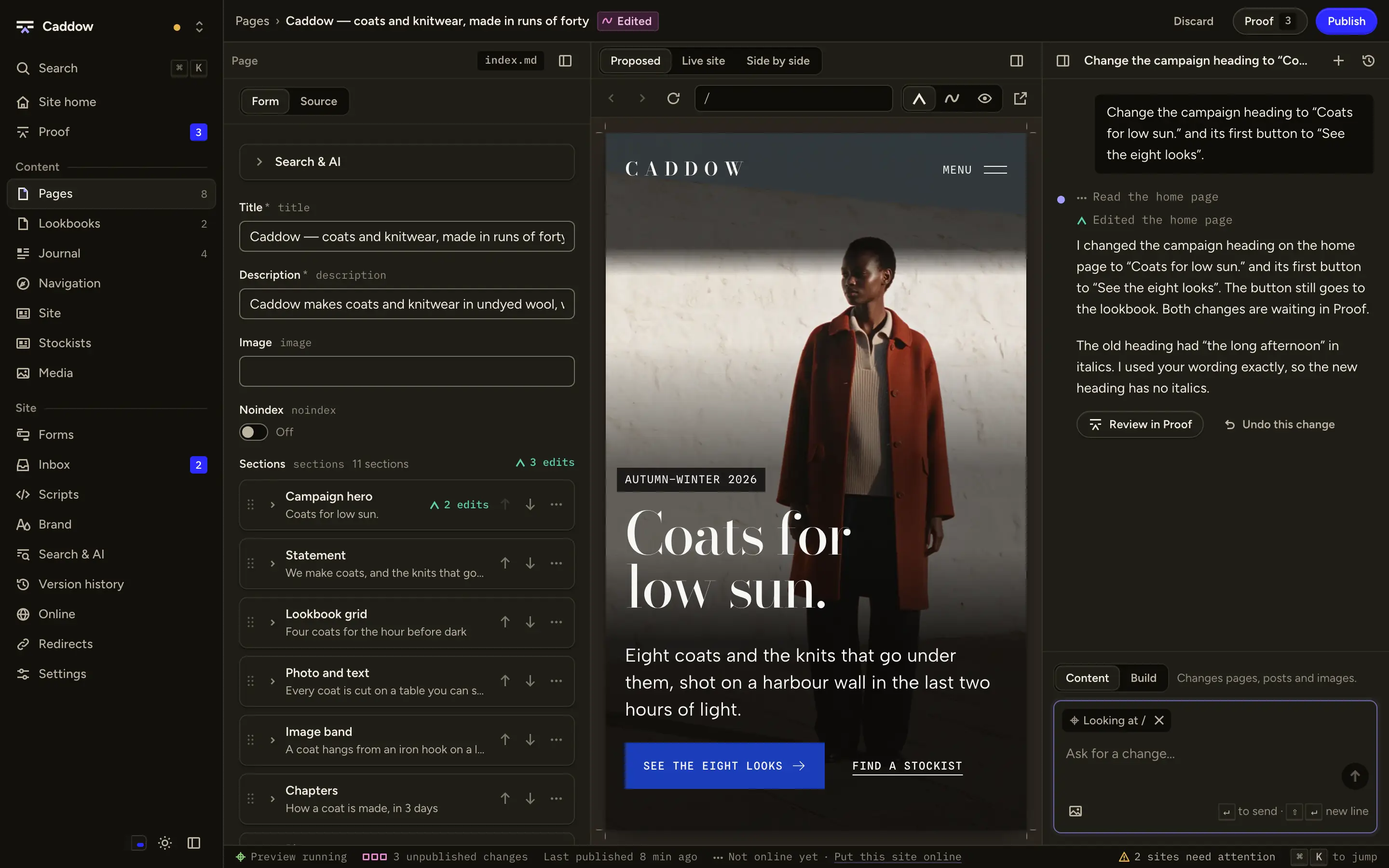
The whole app comes in light and dark. One click at the foot of the sidebar switches it.

The editor in its dark appearance on Caddow’s home page — the page’s form on the left, the page in the middle with the new heading Coats for low sun., and on the right the assistant’s reply saying what it changed, with Review in Proof and Undo this change; the switch between light and dark sits at the foot of the sidebar.

ThemesNew, in final checks

Quiet, Plate and Desk come with the app, each in light and dark, and you can make one of your own. Every theme is checked for readability before it is used.

How to do it: Themes
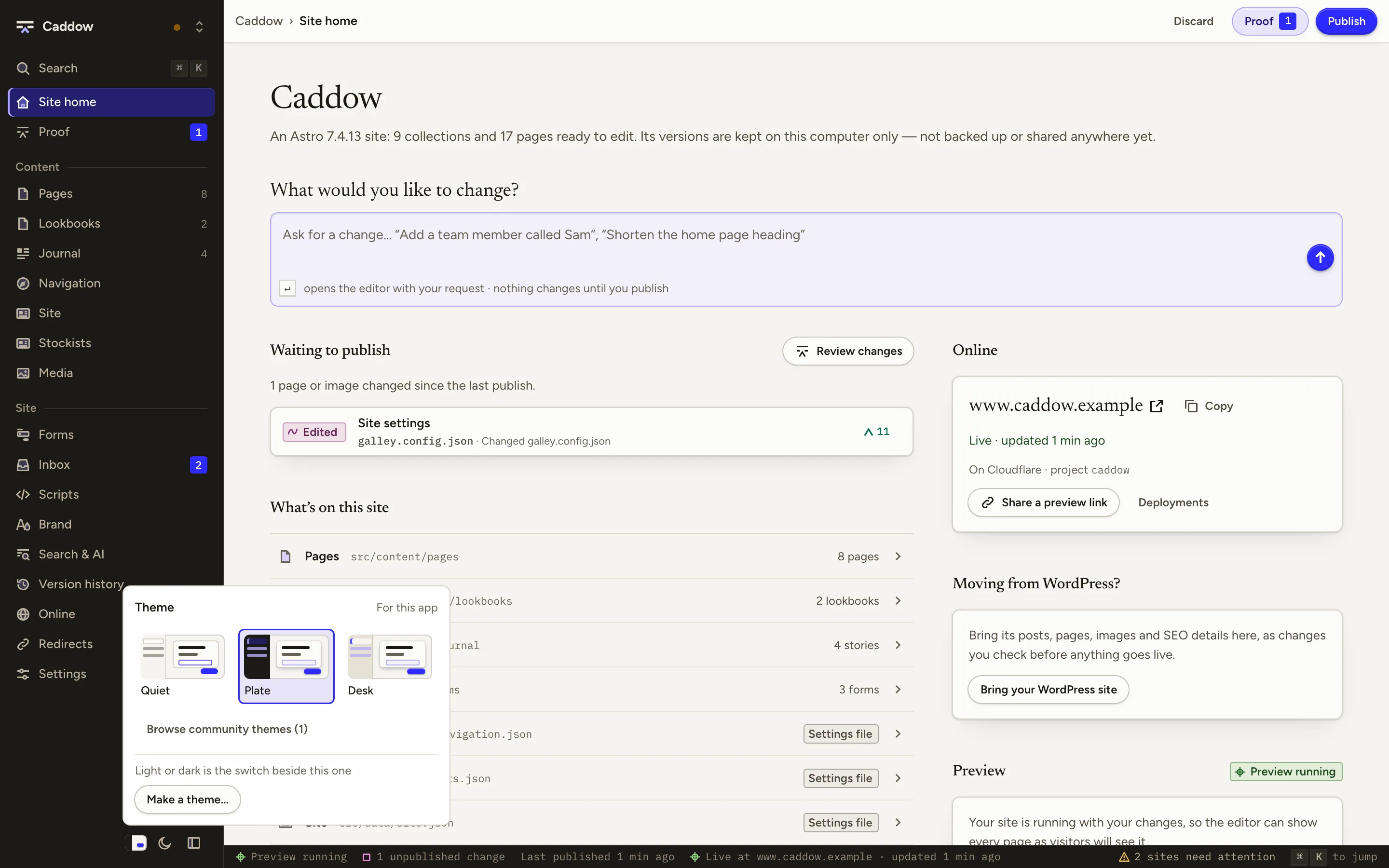
Site home for Caddow in the Plate theme — the sidebar an inked plate with light words — with the theme picker open at its foot, Quiet, Plate and Desk drawn as small swatches, then Browse community themes and Make a theme….

Check and publish.

Nothing is live until someone presses Publish, and a publish can be undone.

Proof

Every change waiting, in the site’s own words — the old struck out, the new written in. Put back any one.

How to do it: Proof
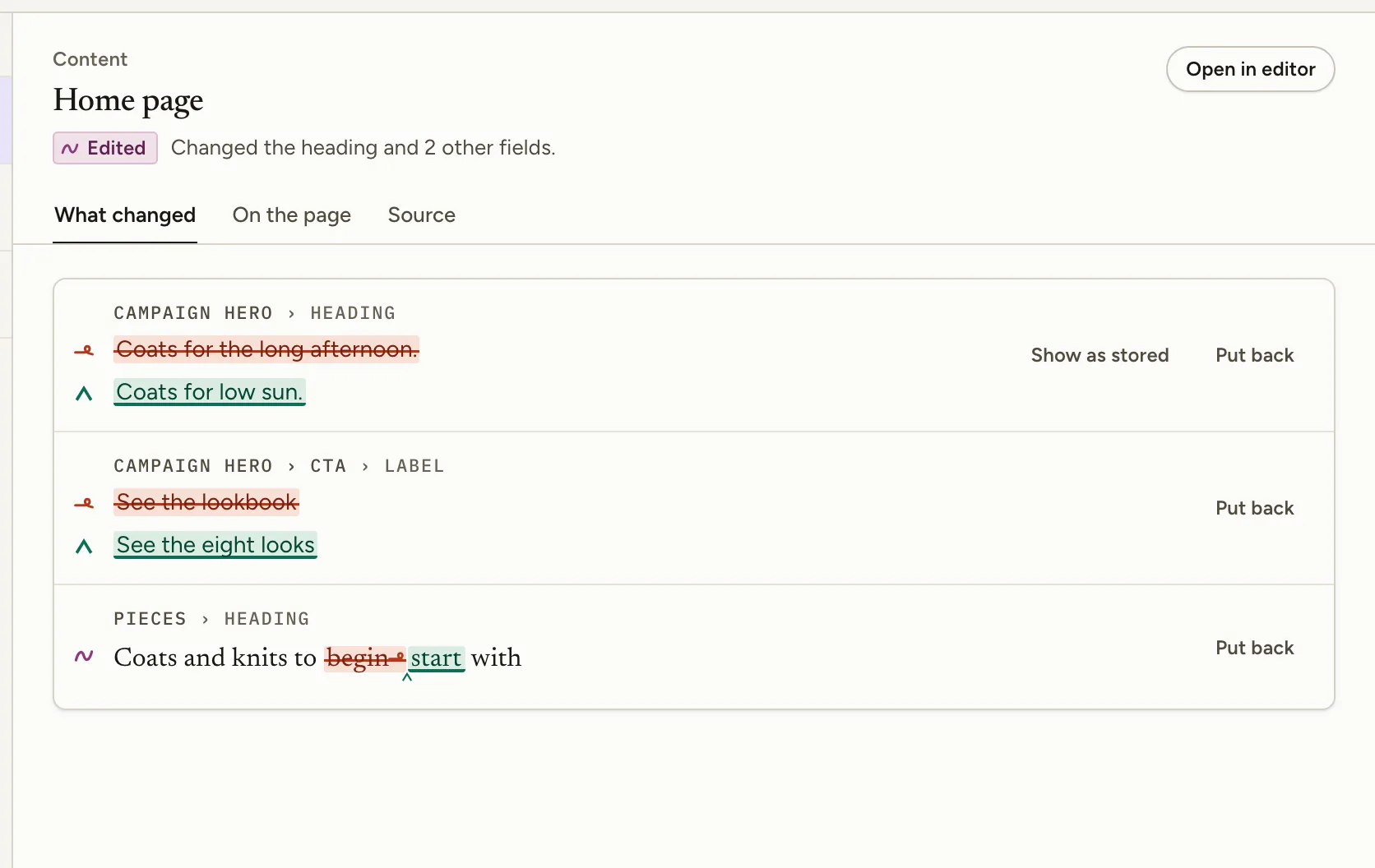
Proof for the Caddow home page, What changed — “Coats for the long afternoon.” struck out and “Coats for low sun.” written in, “See the lookbook” changed to “See the eight looks”, and “begin” changed to “start” in the Pieces heading, each with Put back.

Publish

A one-line note for the version history, a list of what goes, and one button. Untick anything you’d rather keep back.

How to do it: Publish
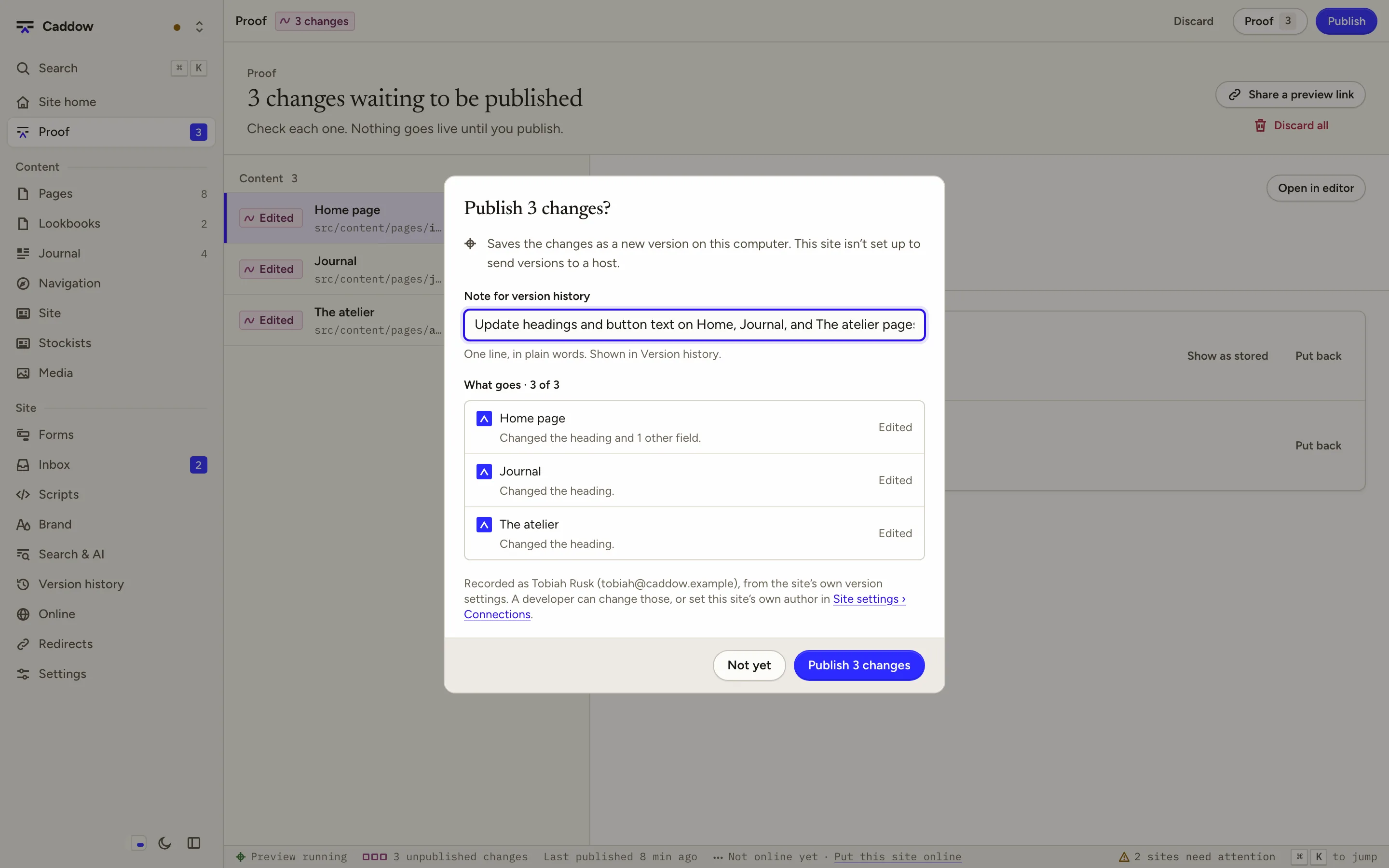
The Publish 3 changes? window over Proof — a suggested one-line note for version history, the three pages that go, each ticked (Home page, Journal, The atelier), the name the version is recorded under, and the buttons Not yet and Publish 3 changes.

Version history

Every published version, newest first, with who published it and when. Undoing one adds a new version, so nothing is erased.

How to do it: Version history
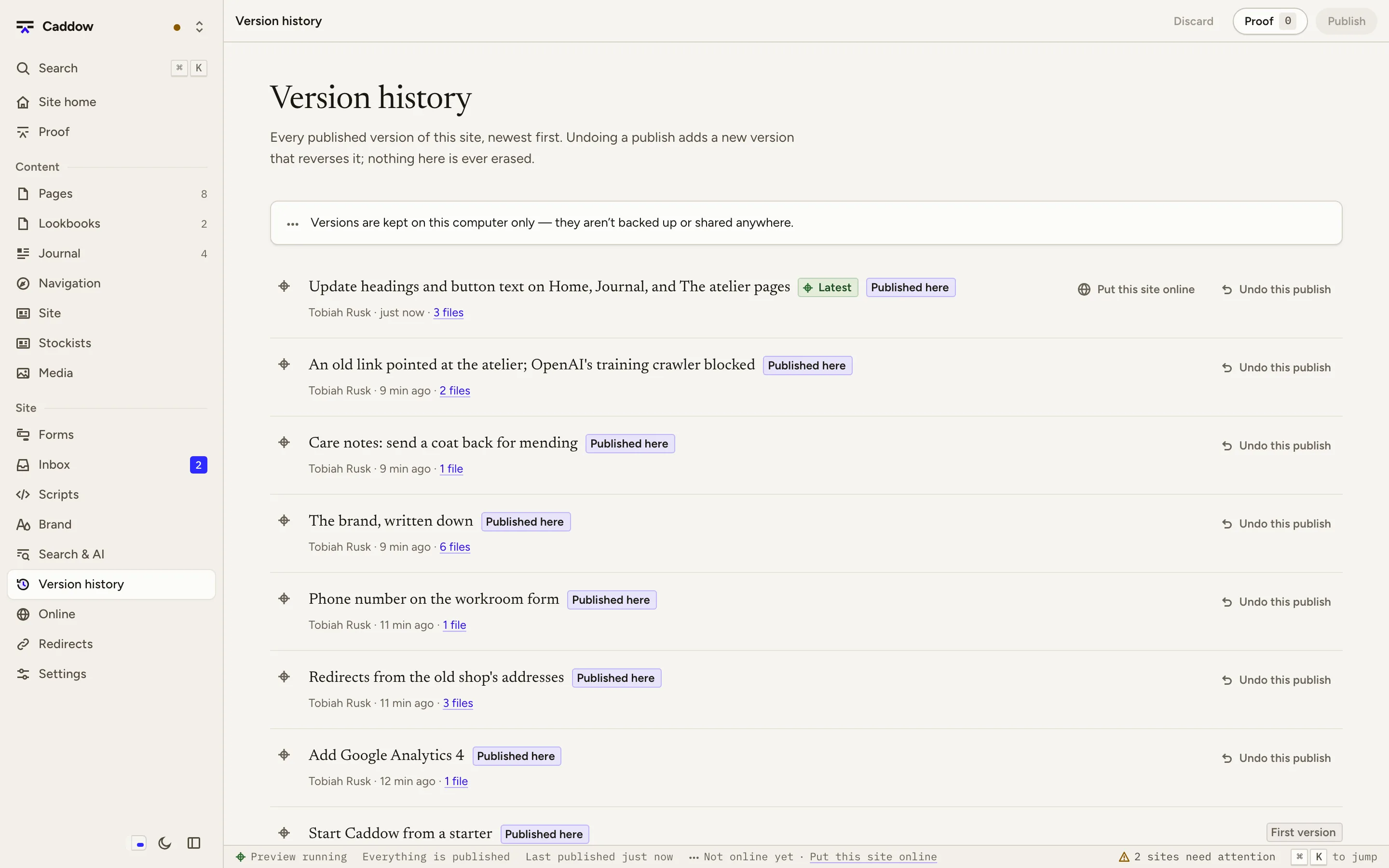
Version history for Caddow, newest first — the latest version, marked Latest and Published here, with Put this site online and Undo this publish, and the earlier ones below it (an old link fixed, care notes, the brand written down, a phone number on the workroom form), each of those with who published it, when, and its own Undo this publish.

Build pages.

Put a page together from the site’s own sections, on the page itself.

ArrangePreview

Drag a section from the panel onto the page, move it, switch its options. Every move offers Undo and waits in Proof.

How to do it: Arrange

Run the site.

Forms, scripts, redirects, the brand and search checks live in the same app — and changing them is a change like any other.

Forms and the inbox

Build a form, then choose where it sends — HubSpot, Marketo, Salesforce, Pardot, a webhook, or the app’s own inbox.

How to do it: Forms and the inbox
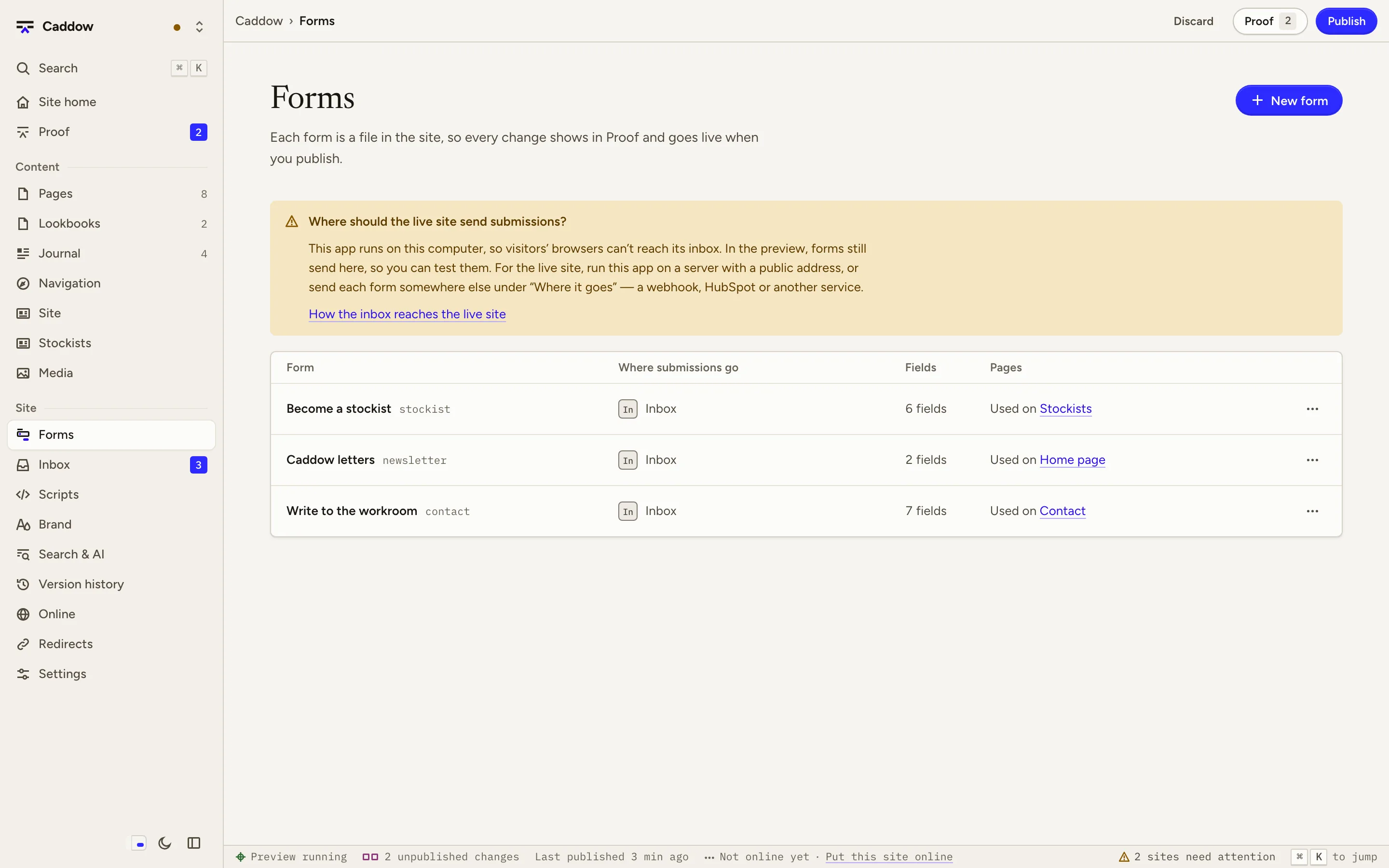
The Forms screen for Caddow — three forms, Become a stockist, Caddow letters and Write to the workroom, each sending to the Inbox, with their number of fields and the page each is used on, under a note about where the live site should send submissions.
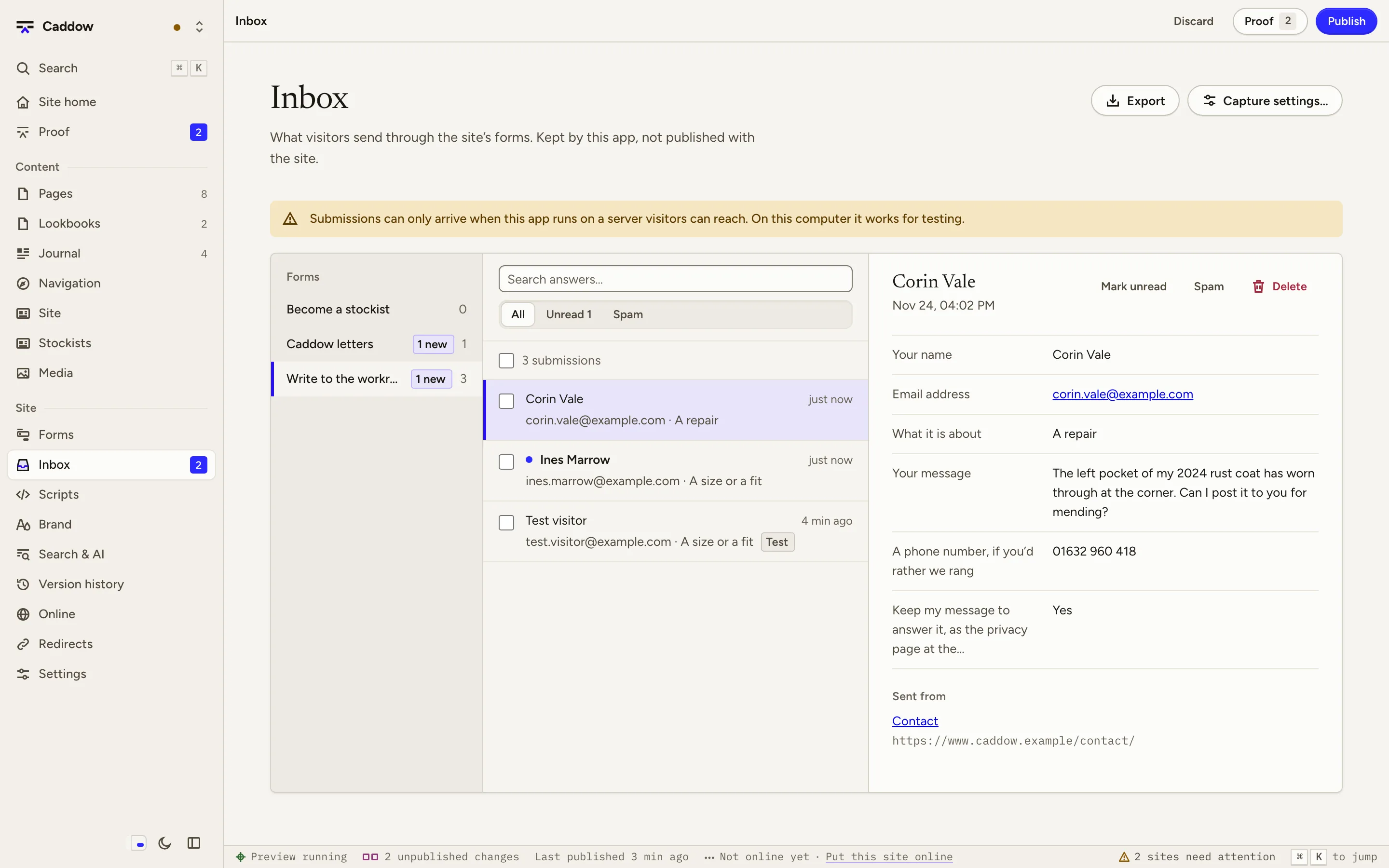
One submission open in the Inbox — Corin Vale, asking about a repair, with every answer beside its label.

Scripts, with consent

Google Analytics, Tag Manager and others, chosen from a list. With the built-in banner, each loads only after the visitor agrees.

How to do it: Scripts, with consent
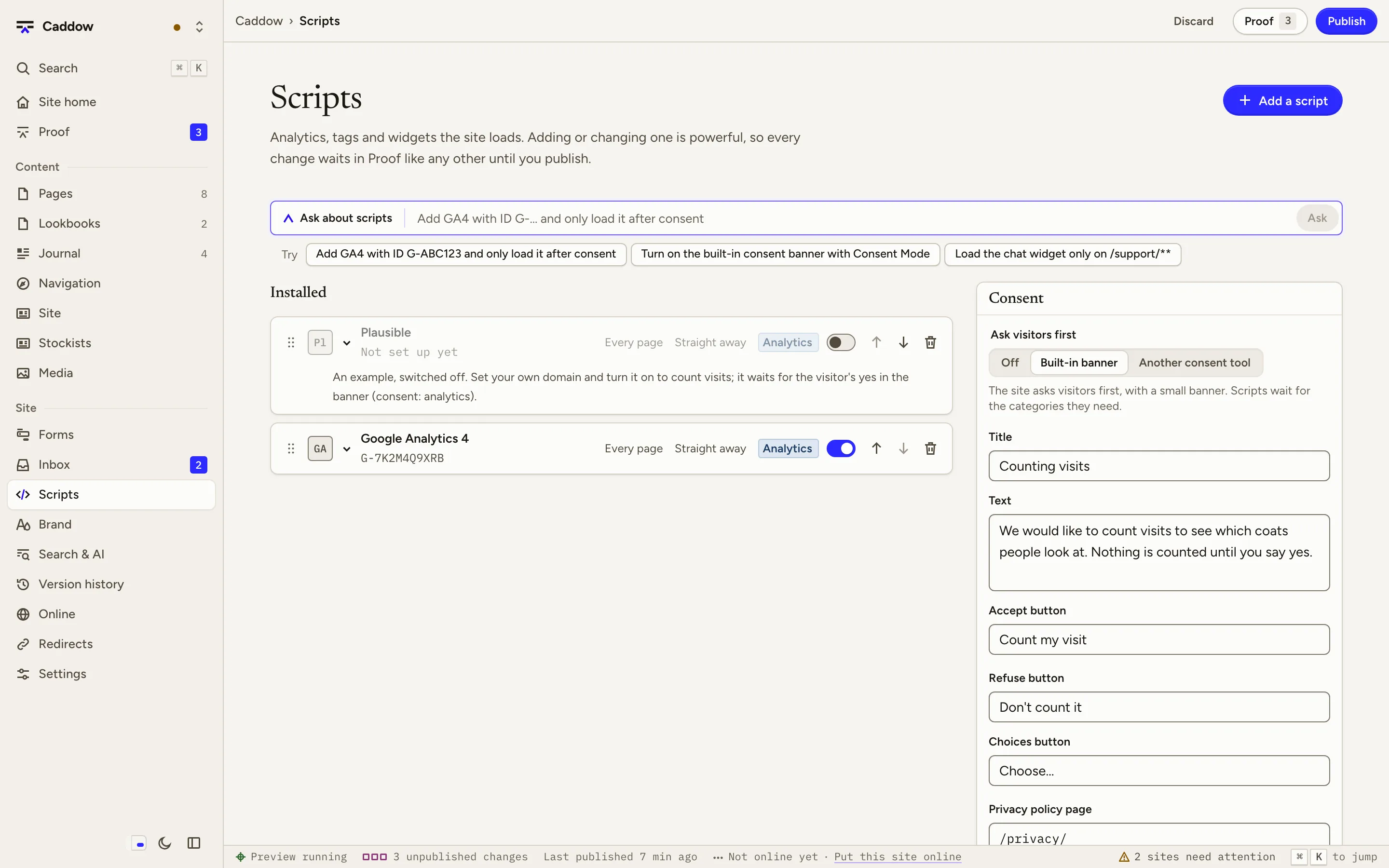
Scripts for Caddow — Plausible switched off and Google Analytics 4 switched on, both marked Analytics, and beside them the built-in consent banner set to ask visitors first, with its words — Counting visits, Count my visit, Don’t count it.

Images and video

Upload pictures, video and documents, or make an image from a description and save it to the site’s media.

How to do it: Images and video
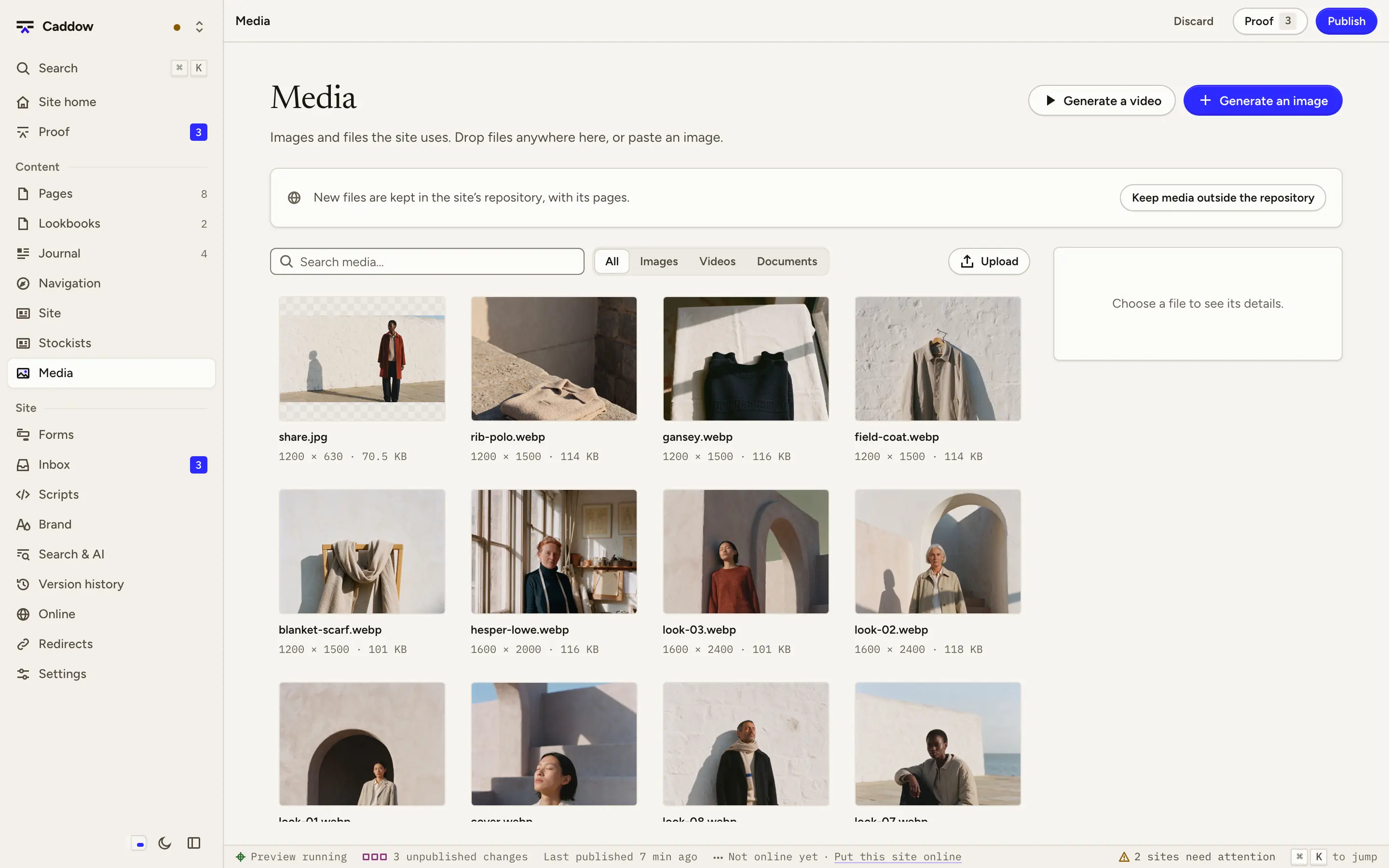
Media for Caddow — the site’s photographs with their sizes, filters for images, videos and documents, and the buttons Upload, Generate a video and Generate an image.

Media in a bucketIn progress

New pictures, PDFs and videos can go to a Cloudflare R2 or Amazon S3 bucket of your own instead of the repository. Each file says which pages use it, and a file a page still uses is never deleted.

How to do it: Media in a bucket
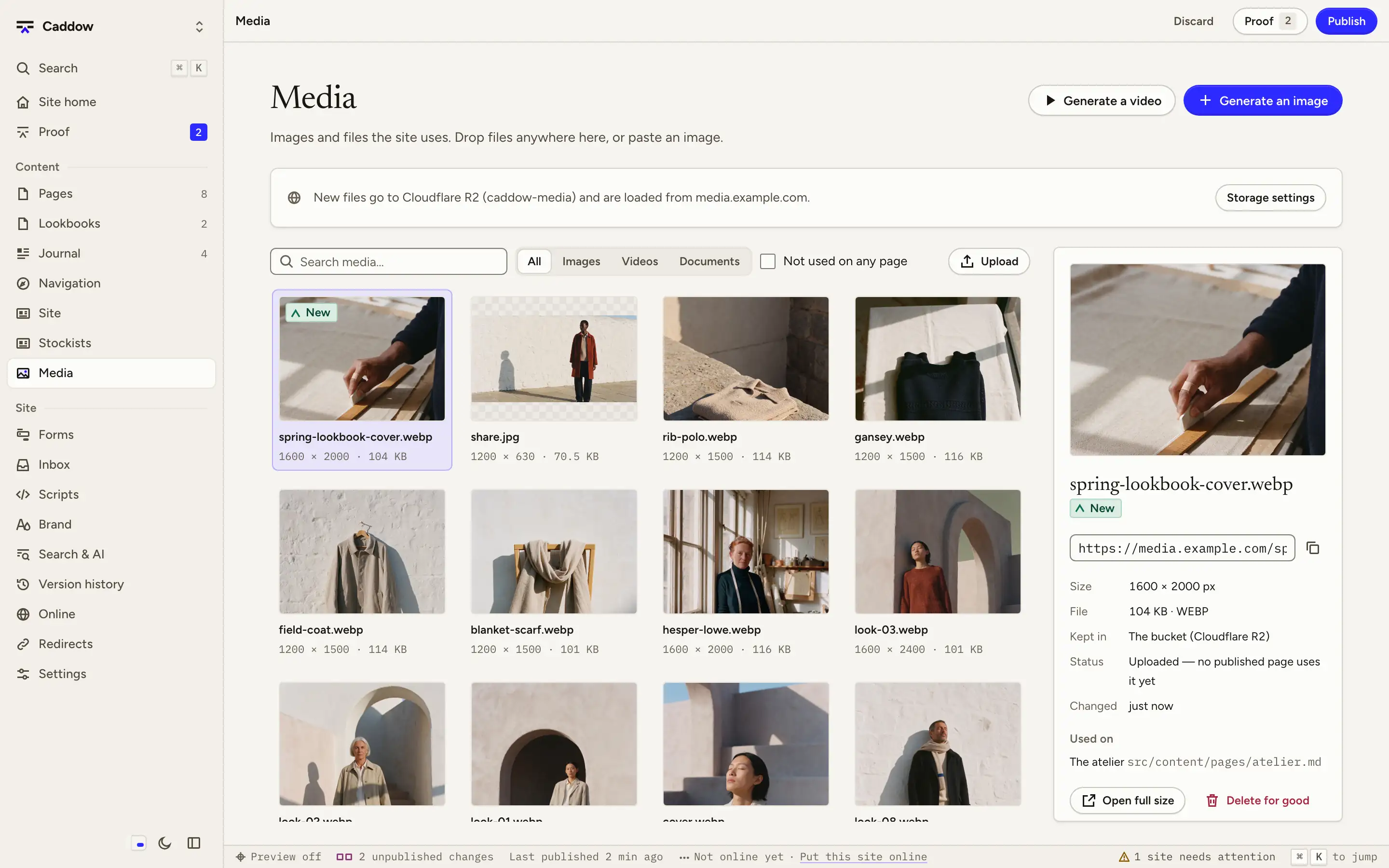
Media for Caddow with a bucket connected — New files go to Cloudflare R2 (caddow-media) and are loaded from media.example.com — and spring-lookbook-cover.webp chosen, its details beside the photographs, Kept in The bucket (Cloudflare R2) and Used on The atelier, with Open full size and Delete for good.

Redirects

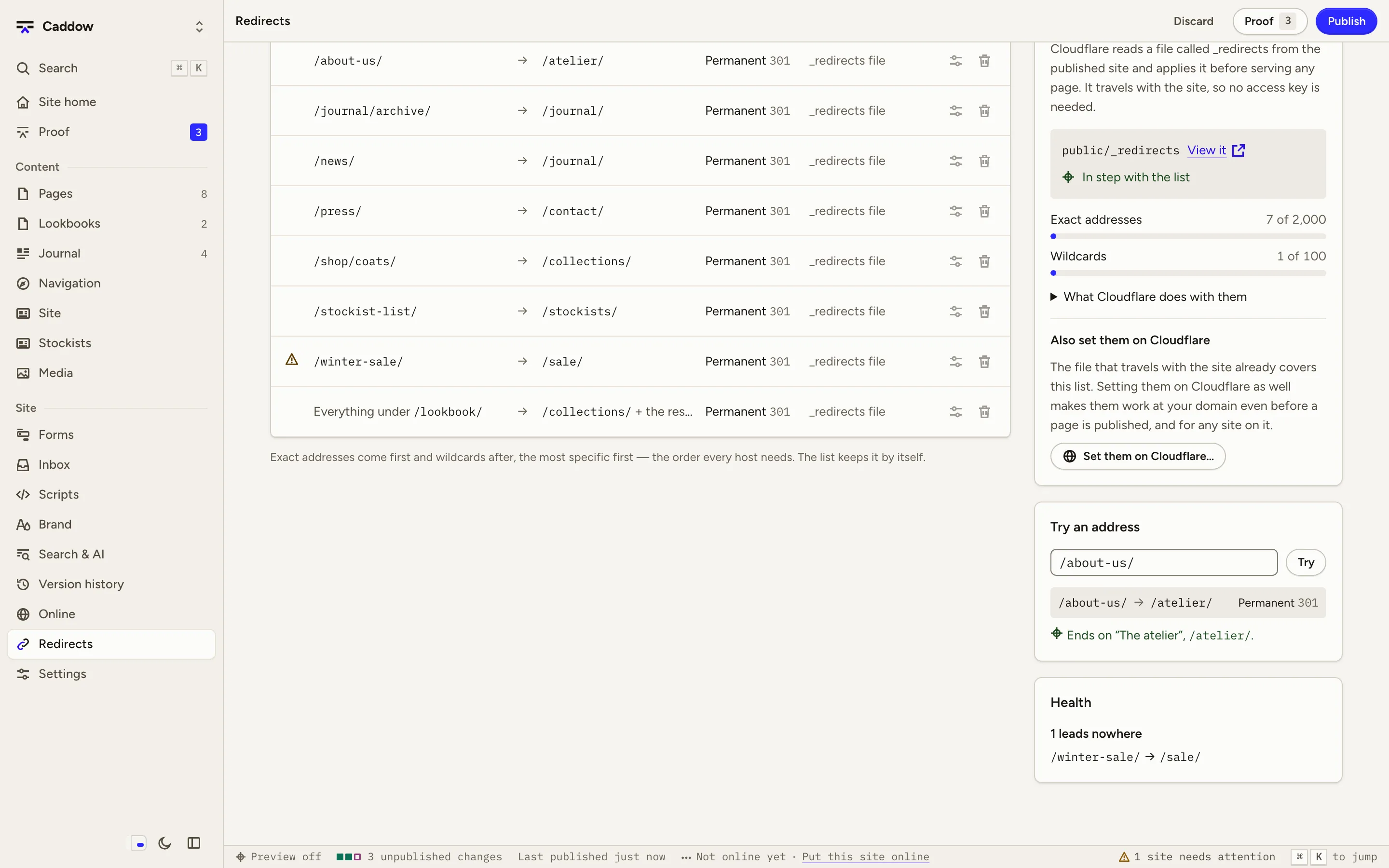
Paste a whole list. Loops, chains and doubles are caught before anything is added, and the host’s redirect file stays in step.

How to do it: Redirects
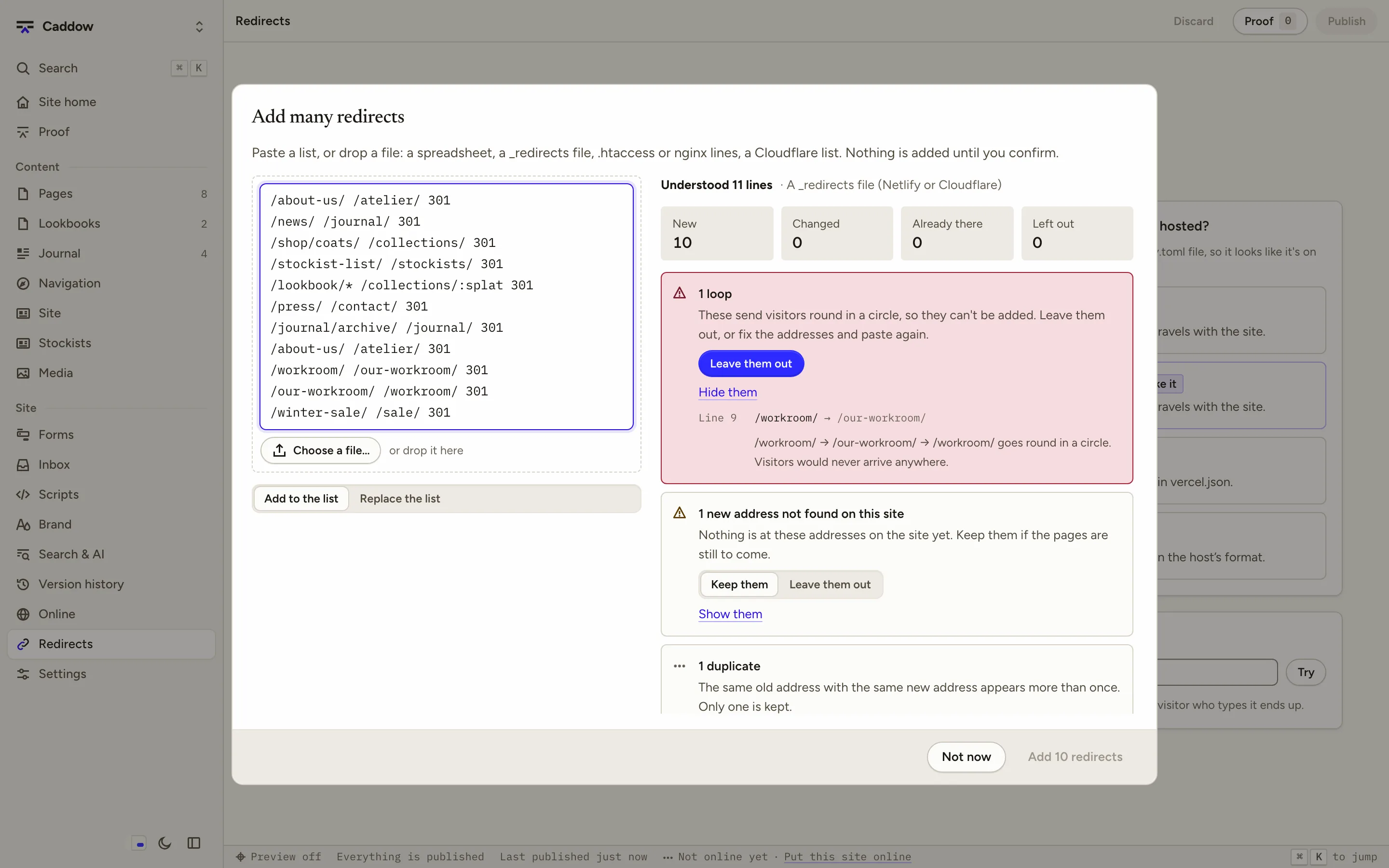
The Add many redirects window over the Redirects screen — eleven pasted lines on the left; on the right, Understood 11 lines with 10 new, a loop caught (/workroom/ to /our-workroom/ and back) with Leave them out, one new address not found on the site, and one duplicate.
Try an address on the Redirects screen — /about-us/ goes to /atelier/, Permanent 301, and ends on “The atelier”.

The brand

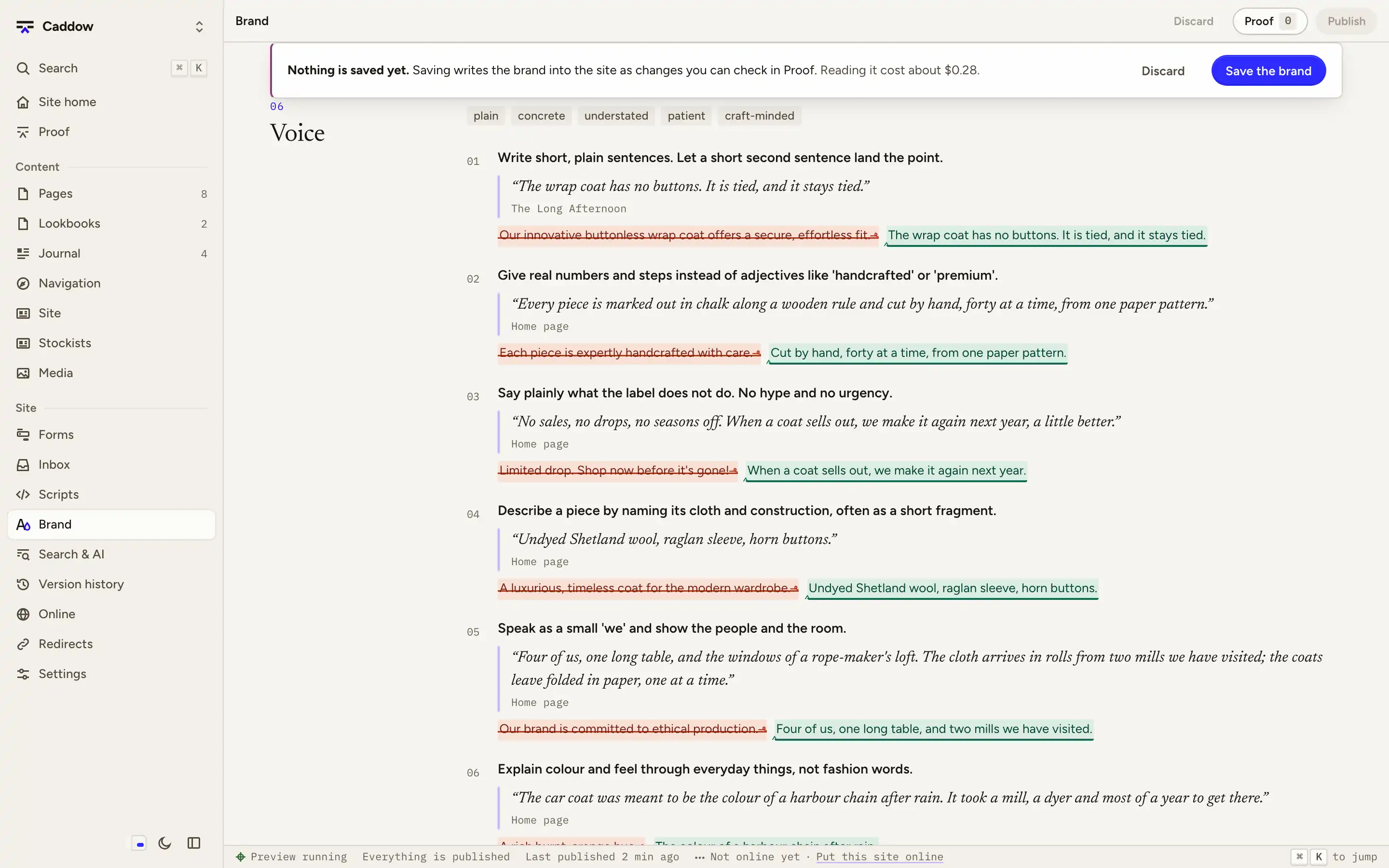
Read from the site itself, or from guidelines, logos and screenshots — colours, type, logo and voice, each saying where it came from.

How to do it: The brand
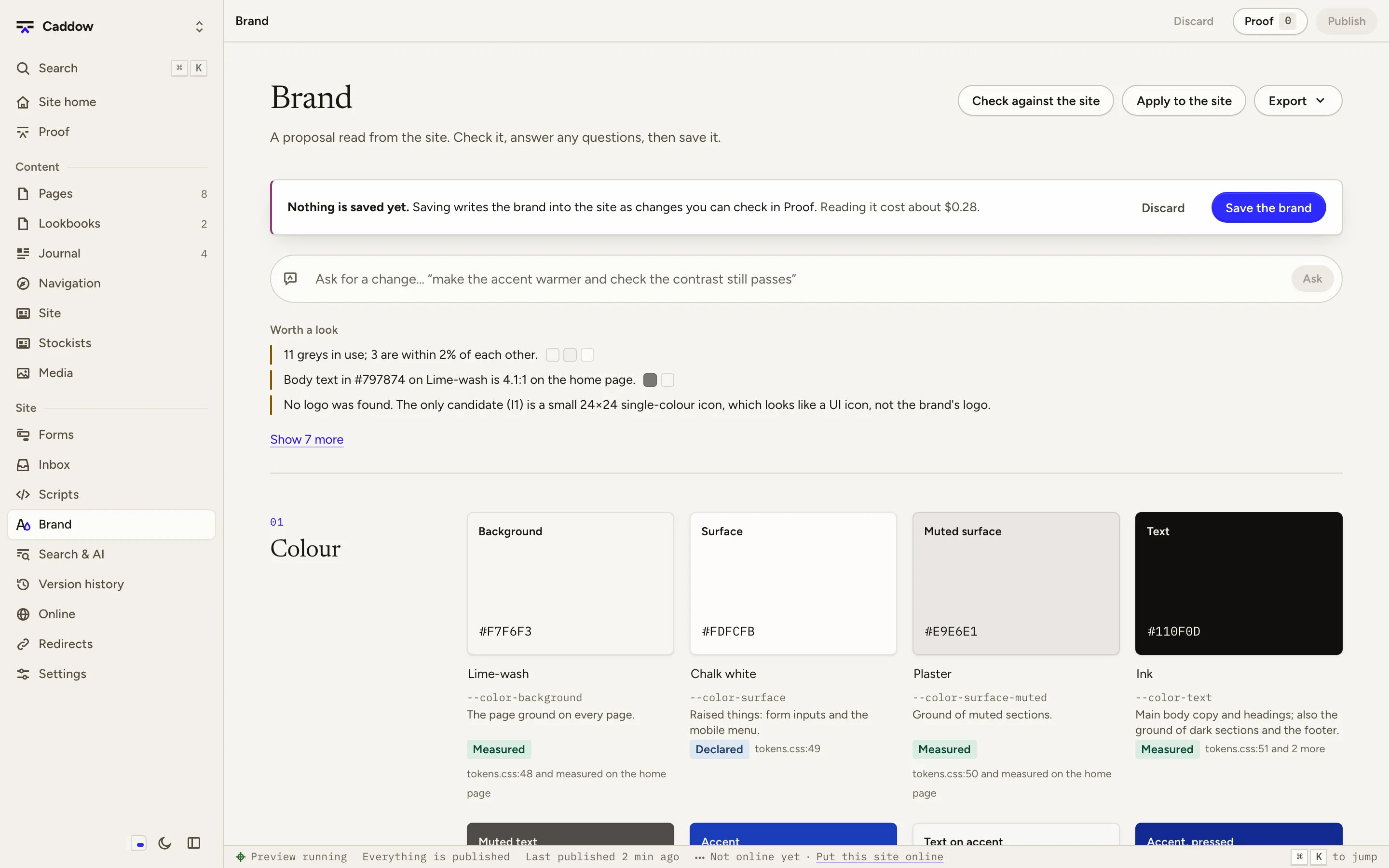
The brand proposal for Caddow, read from the site — Nothing is saved yet with Save the brand, Worth a look notes on near-identical greys and text contrast, and the first colours, Lime-wash, Chalk white, Plaster and Ink, each marked Measured or Declared, some with where in the styles they were found.
The Voice part of the proposal — rules drawn from the site’s own words, each quoting the page it came from, with a line to avoid struck out and the site’s way written in beside it.

Go live and grow.

A real address for the site and, if you want one, for its editor and its team; every site you look after, on your desktop; and a way out of WordPress.

Put it online

A real address on Cloudflare in four steps — even for a site that so far lives only on your computer. Then your own domain, if you have one; Cloudflare answers it with the site.

How to do it: Put it online

Pictured against a stand-in for Cloudflare, with made-up addresses.
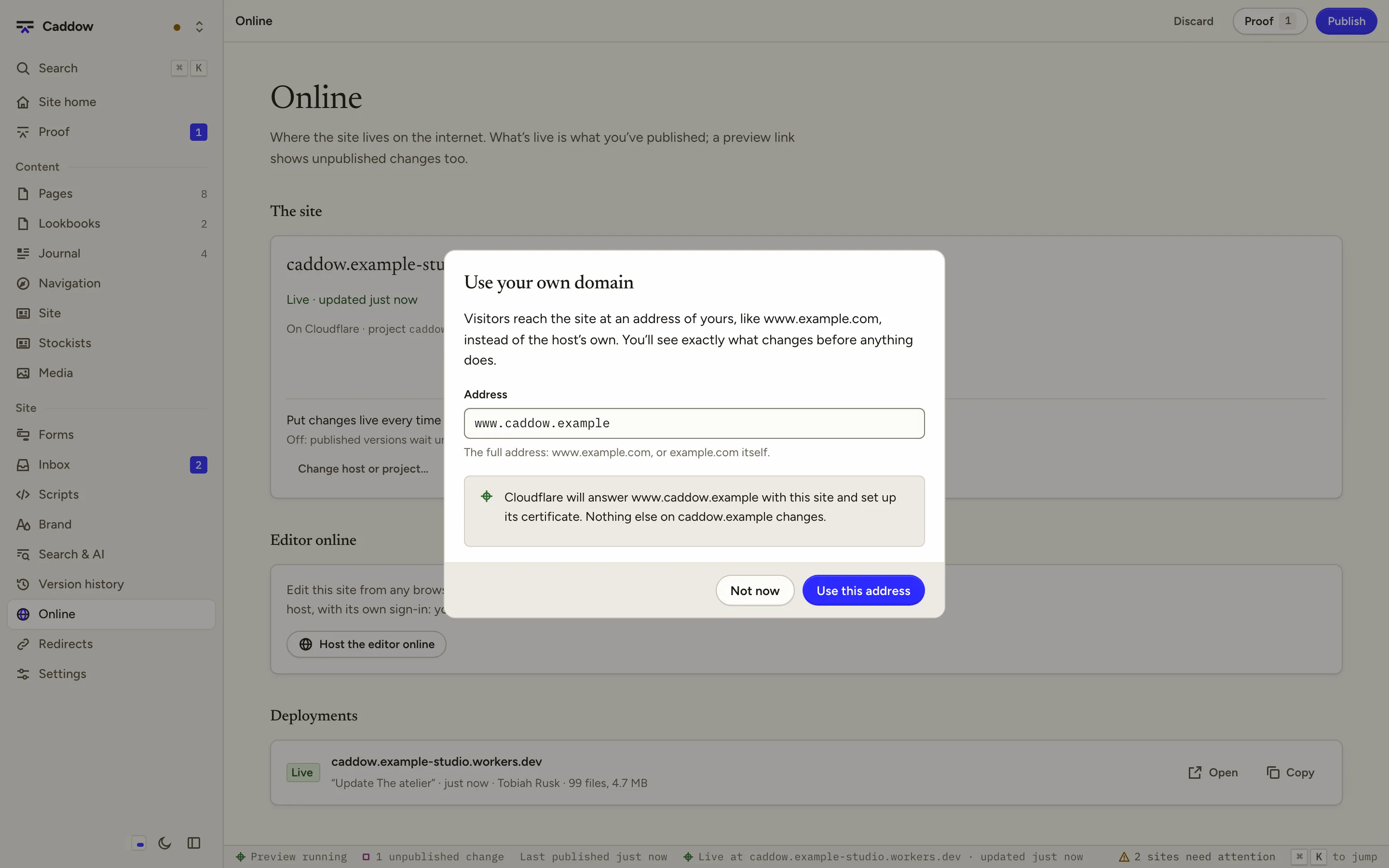
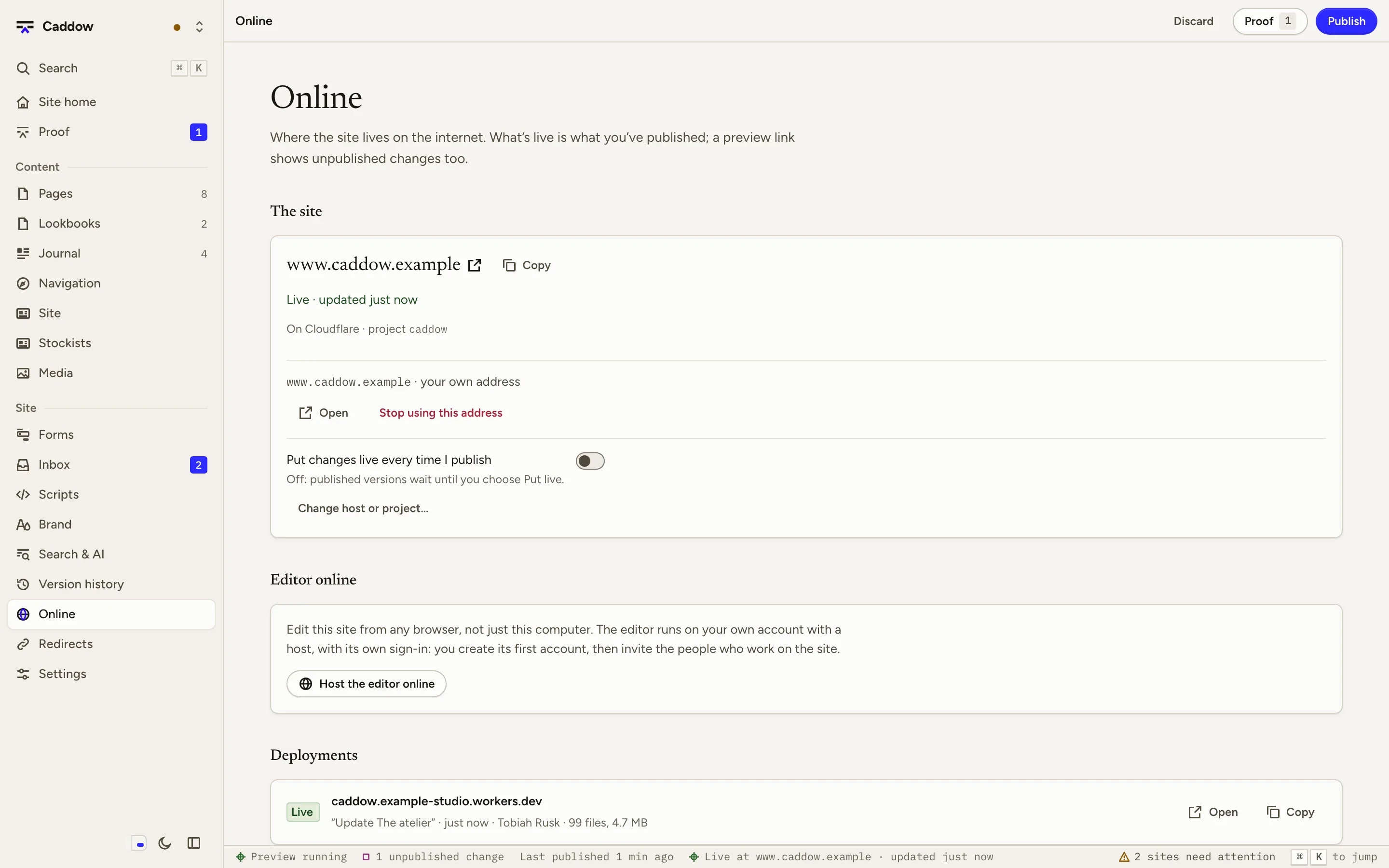
Use your own domain, over the Online screen — the address www.caddow.example, and the note that Cloudflare will answer it with this site and set up its certificate, while nothing else on caddow.example changes; behind it, the site live at caddow.example-studio.workers.dev.
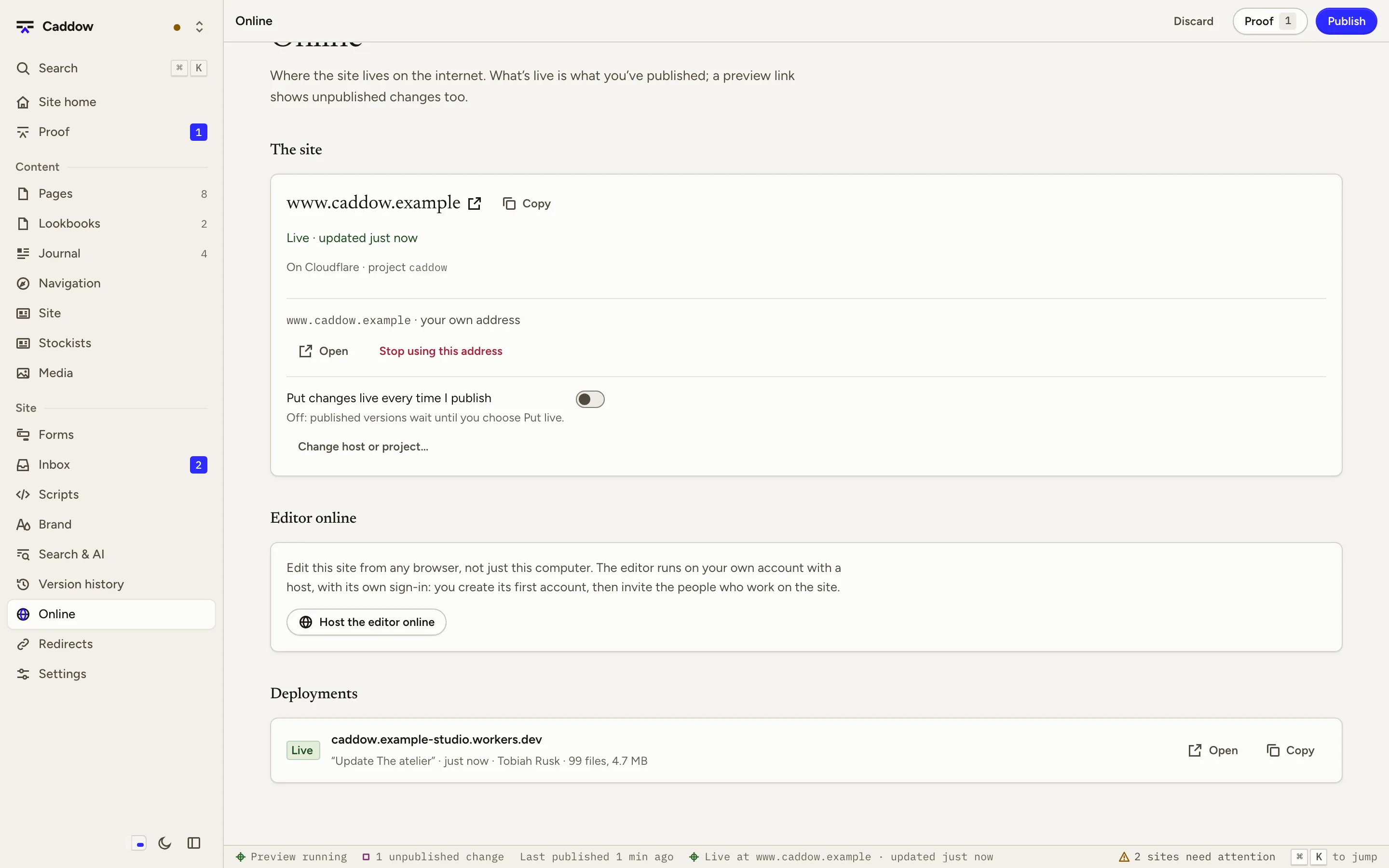
The Online screen afterwards — www.caddow.example with its Copy button, Live and updated just now, on Cloudflare in the project caddow, marked as your own address.

The editor, onlineIn progress

Edit the site from any browser. The app puts an editor for it on your own Fly.io account, in your Google Cloud project, on Cloudflare in front of a computer of yours, or on a server with Docker — and shows what it will create and what it costs a month before anything exists.

How to do it: The editor, online

Pictured against a stand-in for Fly.io, with made-up addresses; nothing was created.
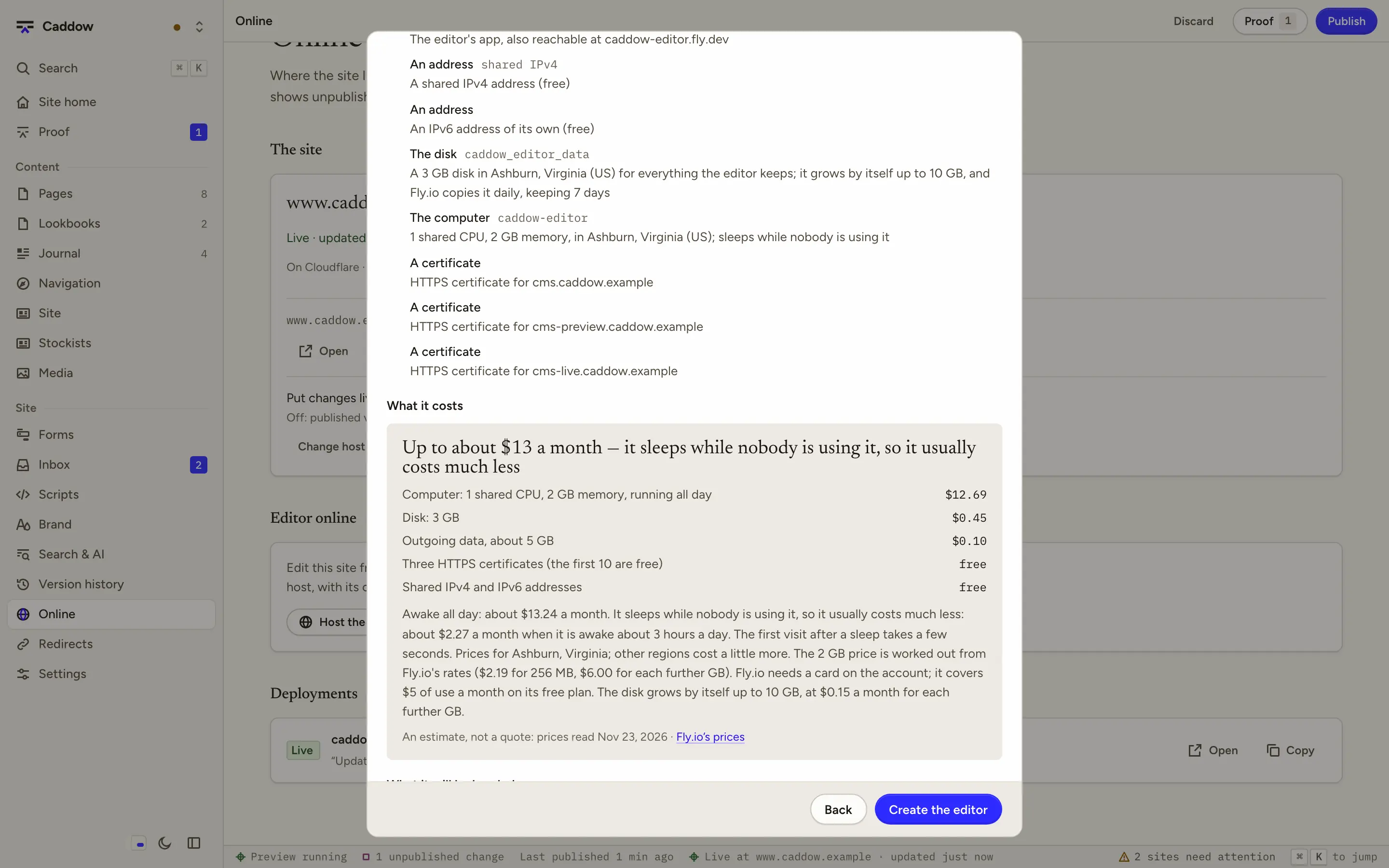
Host the editor online, at its plan — what would be created on Fly.io (the editor’s app, two addresses, a 3 GB disk, a computer with 2 GB of memory that sleeps while nobody uses it, three certificates for cms.caddow.example and its preview and live names), and What it costs, up to about $13 a month and usually much less, with each line and where the prices were read; then Back and Create the editor.
The Online screen’s Editor online section — edit this site from any browser, not just this computer; the editor runs on your own account with a host, with its own sign-in — and the button Host the editor online.

One editor per site, on your own serverNew, in final checks

A hosted install is the same app on a server, for one site, with an account for each person who edits it and everything it keeps in one folder. It runs with Docker on your own server; Fiction Tribe hosts nothing.

How to do it: One editor per site, on your own server

Pictured on a test install on one computer, before any site was connected.
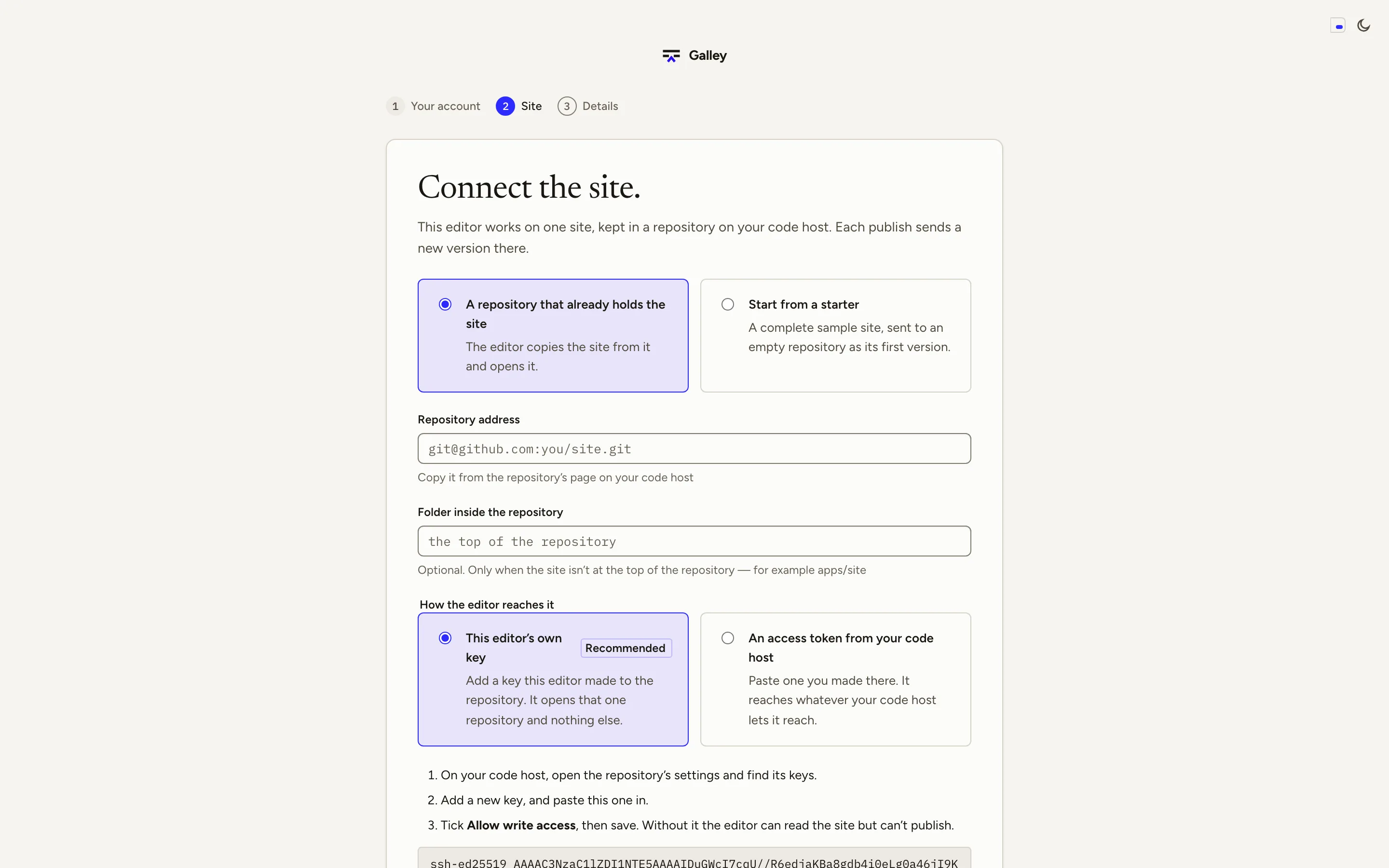
A hosted install’s first run, step 2 of 3, Connect the site — a repository that already holds the site, or a starter sent to an empty one; the repository’s address; and how the editor reaches it, with its own key (recommended), shown to be added to the repository with write access, or an access token from the code host.

People and rolesNew, in final checks

Owners invite everyone else with a one-time link, as an owner, an editor or a contributor. Contributors change the content and see Proof; editors and owners publish; and each publish carries the name of the person who made it.

How to do it: People and roles
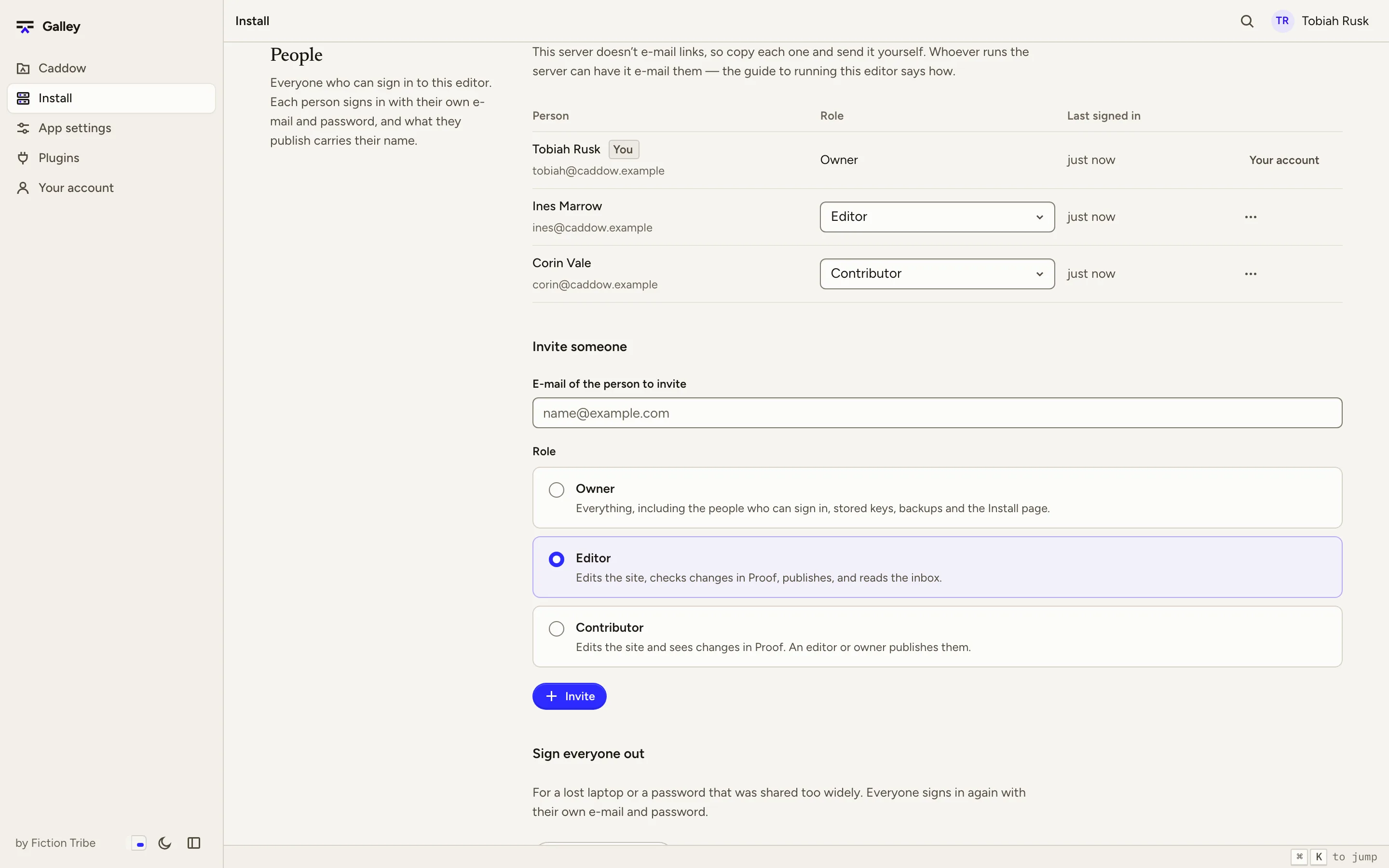
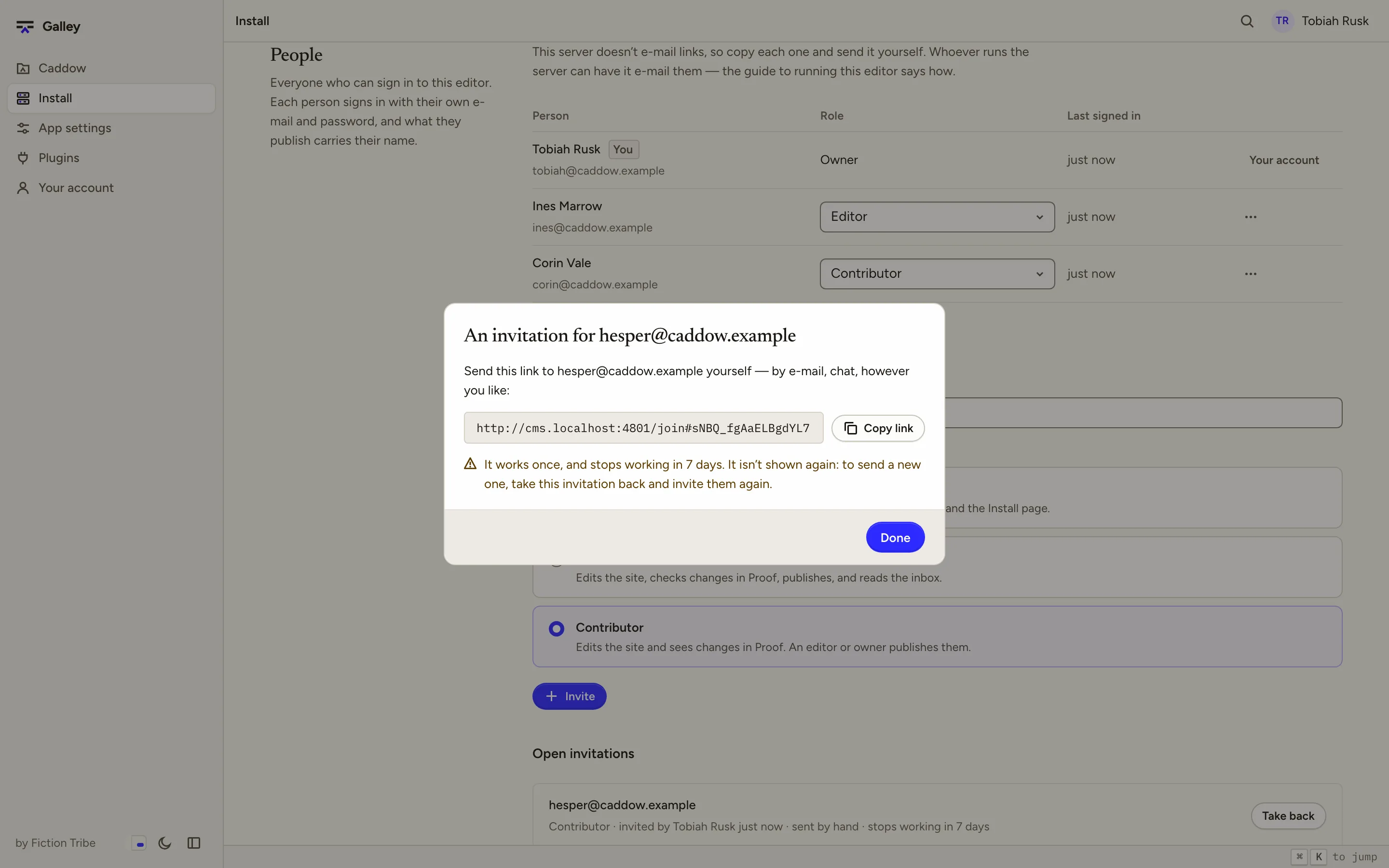
The Install page of a hosted editor, open at People, signed in as Tobiah Rusk — three people listed with their role and when they last signed in, Tobiah Rusk (Owner, marked You), Ines Marrow (Editor) and Corin Vale (Contributor), and below them Invite someone, with an e-mail box, the roles Owner, Editor and Contributor with what each can do, and the Invite button.
A window over the People list titled An invitation for hesper@caddow.example — send this link yourself, the one-time join link with a Copy link button, and a note that it works once, stops working in 7 days and isn’t shown again.

Many sites, one app

Every site you look after in one list, filed by client, each card saying what it is waiting on — changes, unread submissions, versions not yet live.

How to do it: Many sites, one app
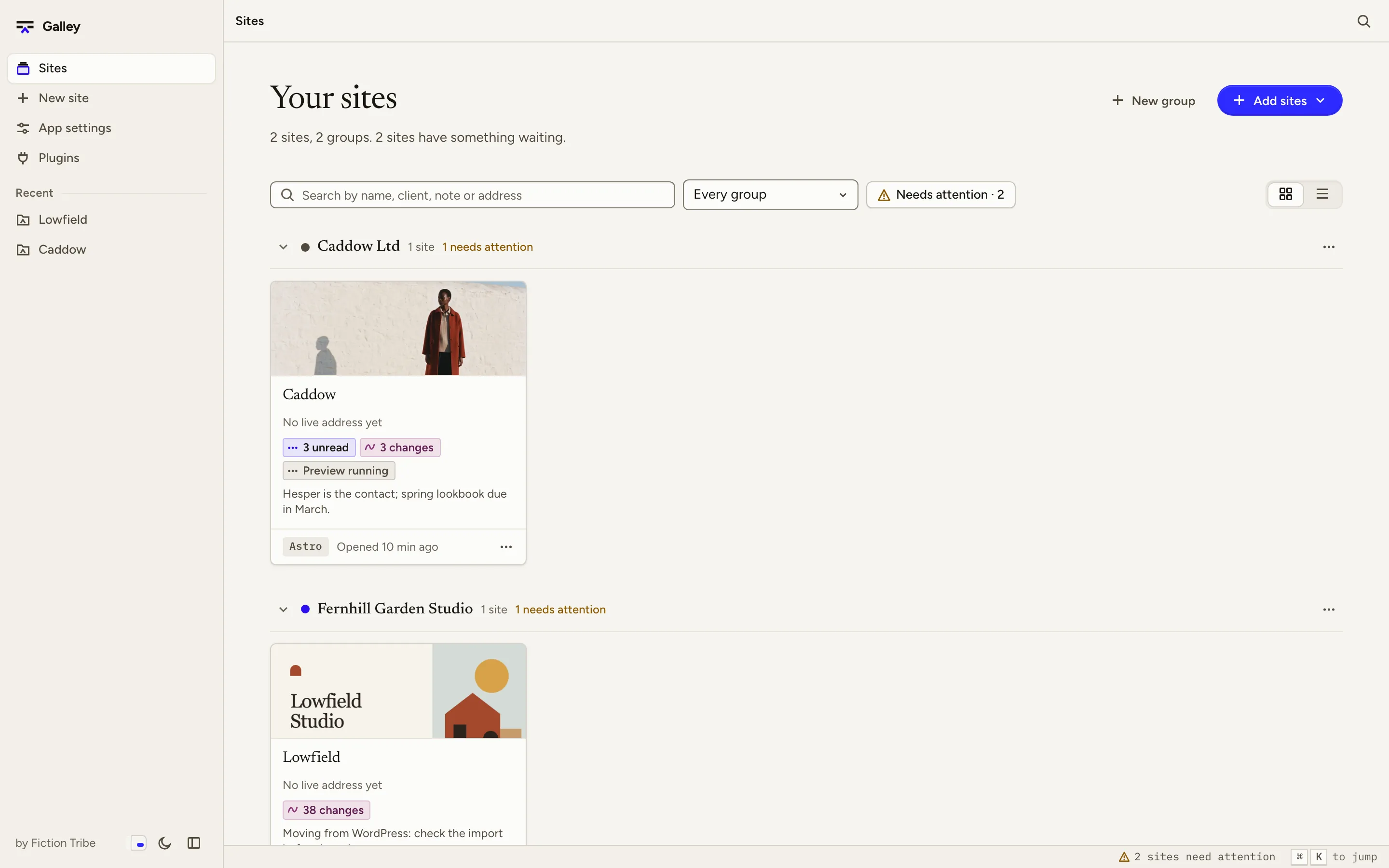
Your sites — two groups, Caddow Ltd and Fernhill Garden Studio, each holding its site’s card; Caddow’s shows 3 unread, 3 changes and Preview running with a note about its contact, Lowfield’s 38 changes; above them search, Every group and Needs attention · 2.
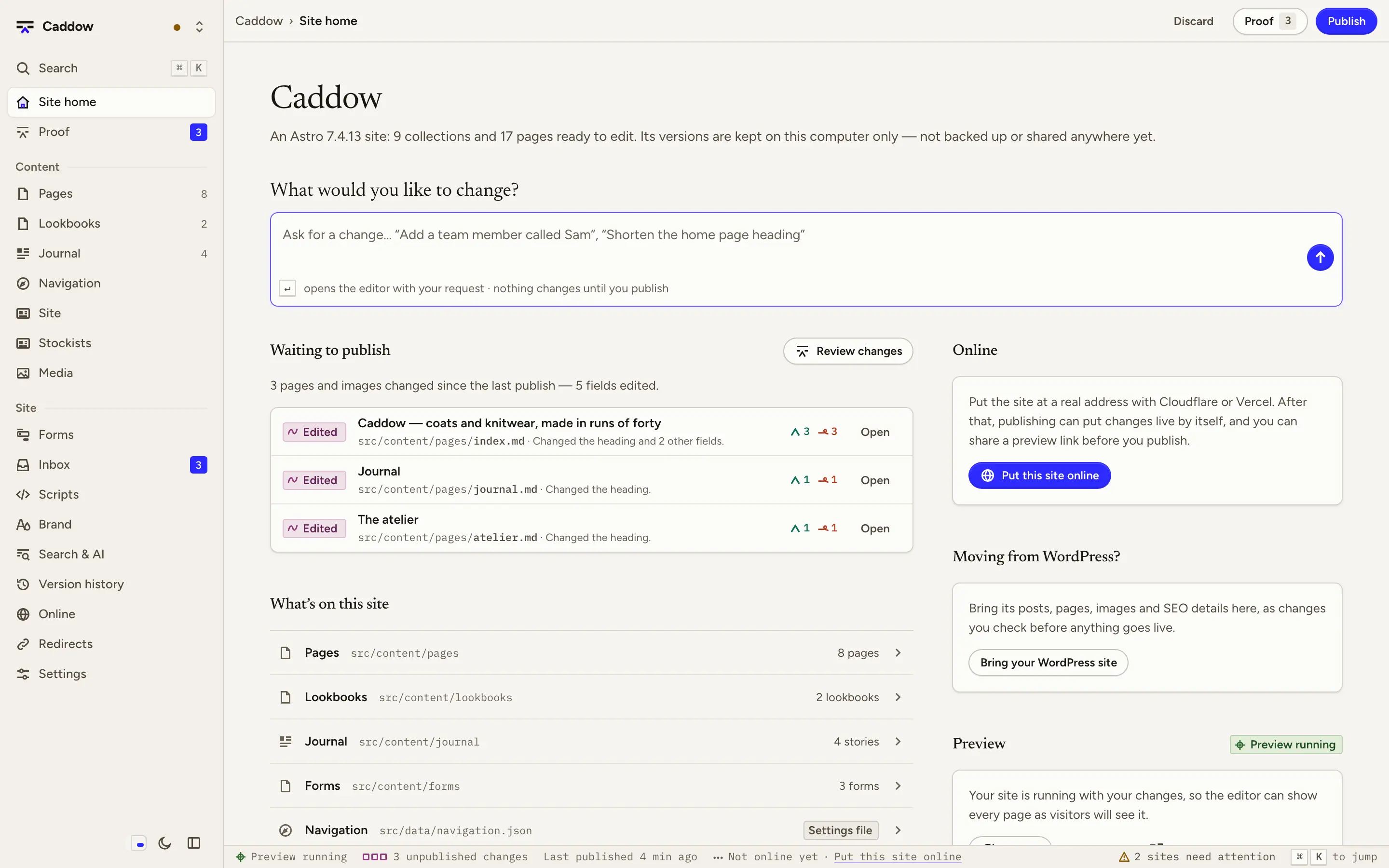
Site home for Caddow, Waiting to publish — three pages edited since the last publish, the home page, Journal and The atelier, with Review changes.

On your desktop

The same app in its own window, for every site you look after — for Mac, Windows and Linux. The Mac app is signed and notarised by Apple, so it opens like any other app.

See the apps
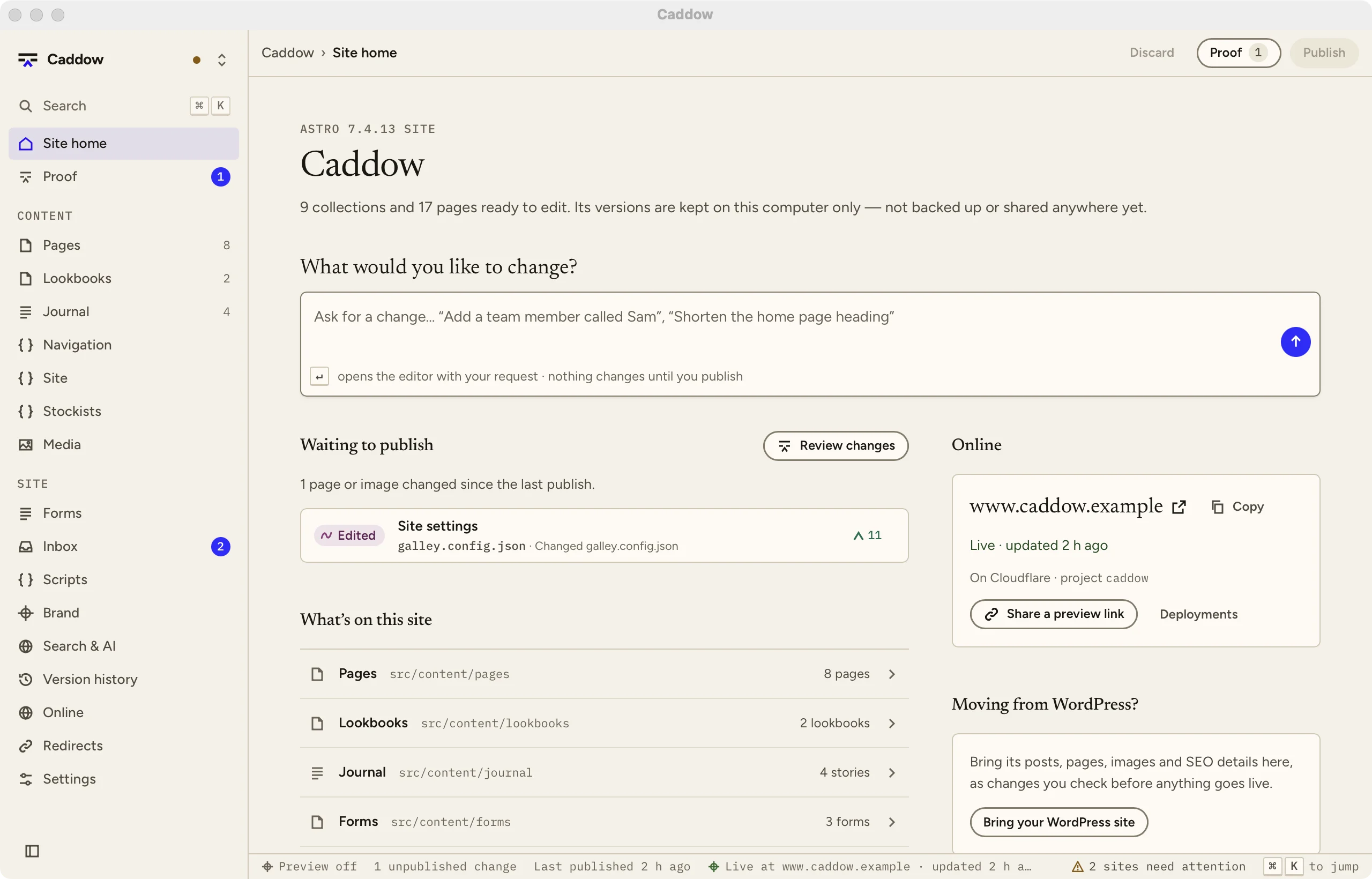
The Galley app on a Mac, in a window titled Caddow — the site’s home screen, with a box to ask for a change, one change waiting to publish, the site live at www.caddow.example, and its pages, lookbooks, journal and forms listed.

Move from WordPressNew, in final checks

Posts, pages, images and search details come across in four steps, as changes you check before anything goes live.

How to do it: Move from WordPress

Pictured with a stand-in WordPress site running on the same computer, hence the 127.0.0.1 address.
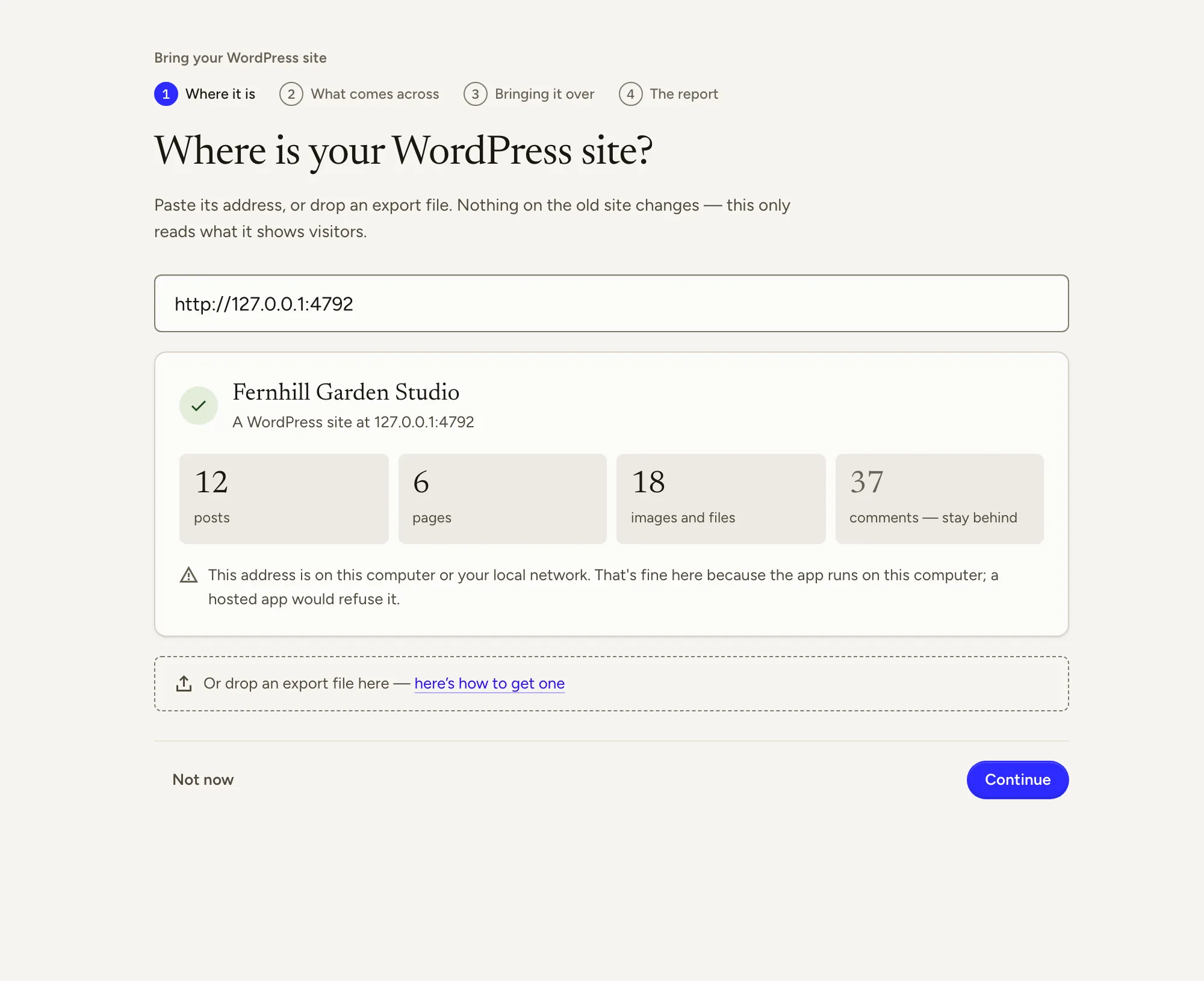
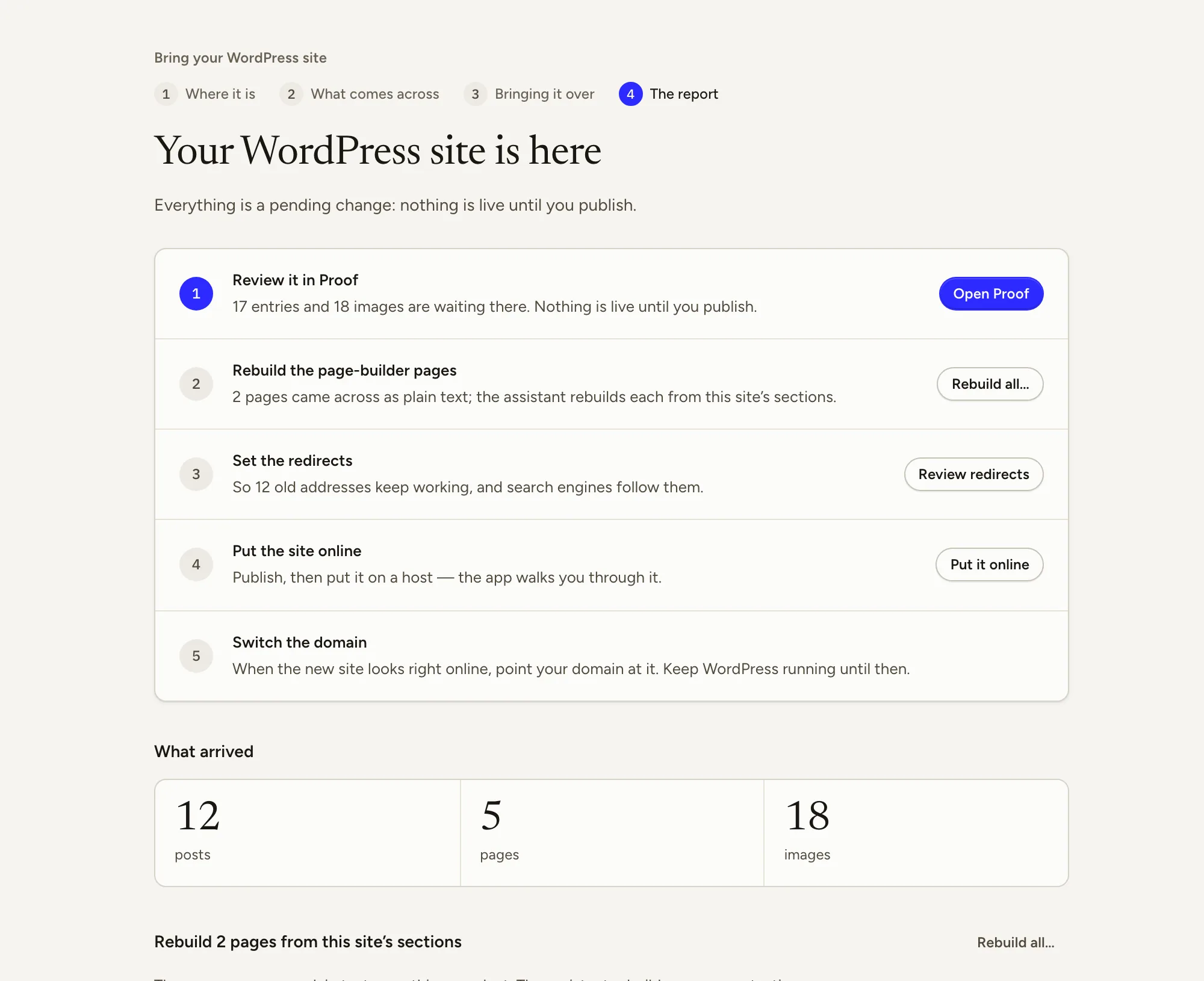
The first of four steps, Where is your WordPress site? — the address http://127.0.0.1:4792 checked as Fernhill Garden Studio, with 12 posts, 6 pages, 18 images and files, and 37 comments that stay behind, and the Continue button.
The fourth step, the report — Your WordPress site is here, then the next steps, Review it in Proof, Rebuild the page-builder pages, Set the redirects, Put the site online, Switch the domain.

Try it on your own site.

Run this in your site’s folder and Galley opens in your browser. The how-to guides take each job a step at a time.

npx galley-cms
You’ll see
Galley is running at http://127.0.0.1:4400