Choose a theme, or make your own

Change how the app looks, in light and dark, and take a theme of your own to another computer.

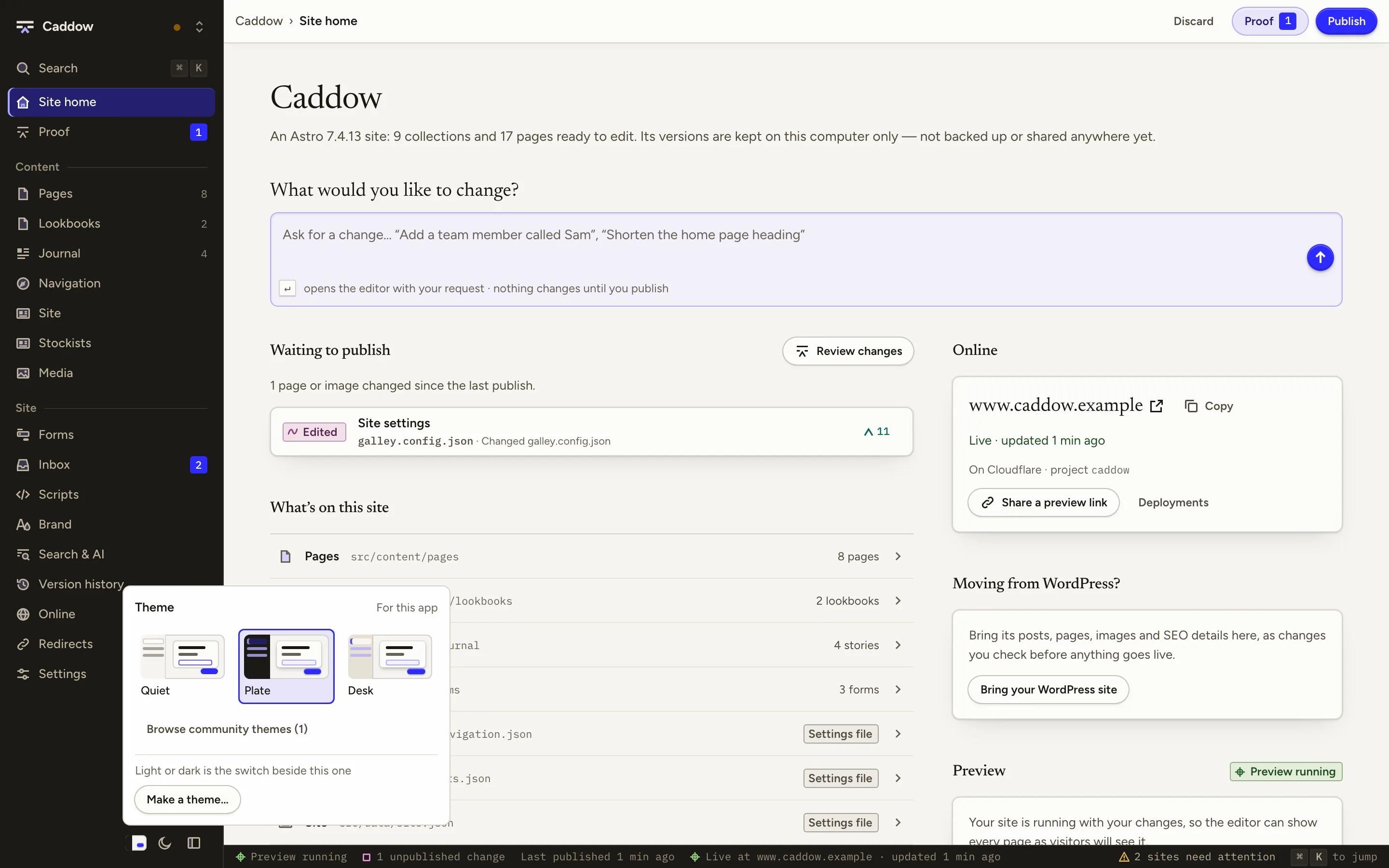
  1. Press the small swatch at the foot of the sidebar and choose a theme — Plate here.

    You’ll see: The whole app changes at once. A theme changes this app only, never a site.

    Site home for Caddow in the Plate theme, the sidebar an inked plate with light words, and the theme picker open at its foot: Quiet, Plate (chosen) and Desk drawn as small swatches, Browse community themes (1), the line Light or dark is the switch beside this one, and Make a theme….
  2. Press the moon beside the swatch for dark; the sun brings light back.

    You’ll see: Every theme has both. Light or dark stays as you set it, whichever theme you choose.

    The same screen in Plate's dark appearance: dark paper with light words, and the sidebar darker still.
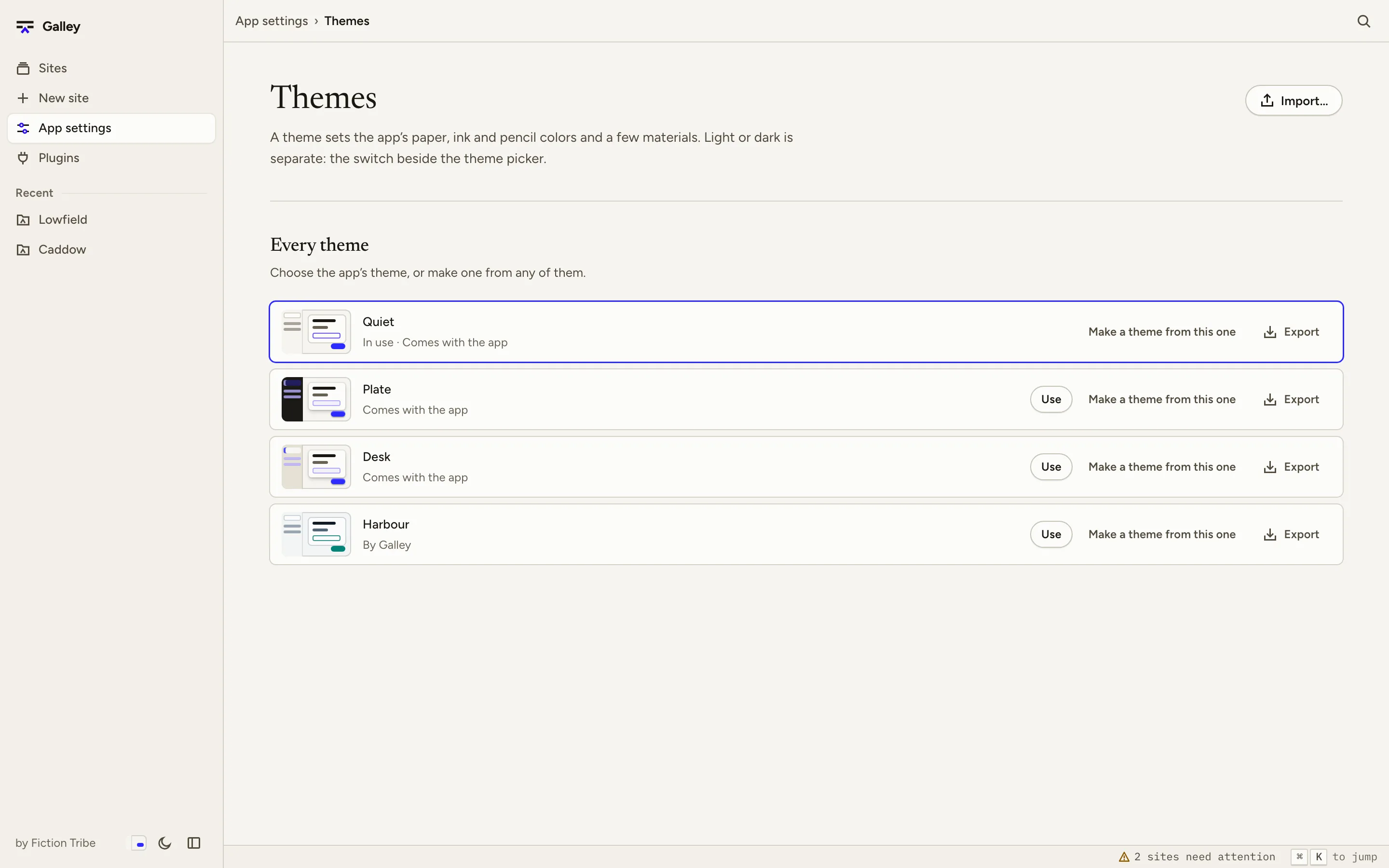
  3. To make your own, open App settings › Themes and press Make a theme from this one beside the theme to start from — Quiet here.

    You’ll see: Make a theme… in the picker starts one from the theme you are using.

    App settings › Themes: Every theme lists Quiet (in use), Plate, Desk and Harbour, each drawn as a swatch, with Make a theme from this one and Export beside it, and Use beside the three not in use; Import… at the top right.
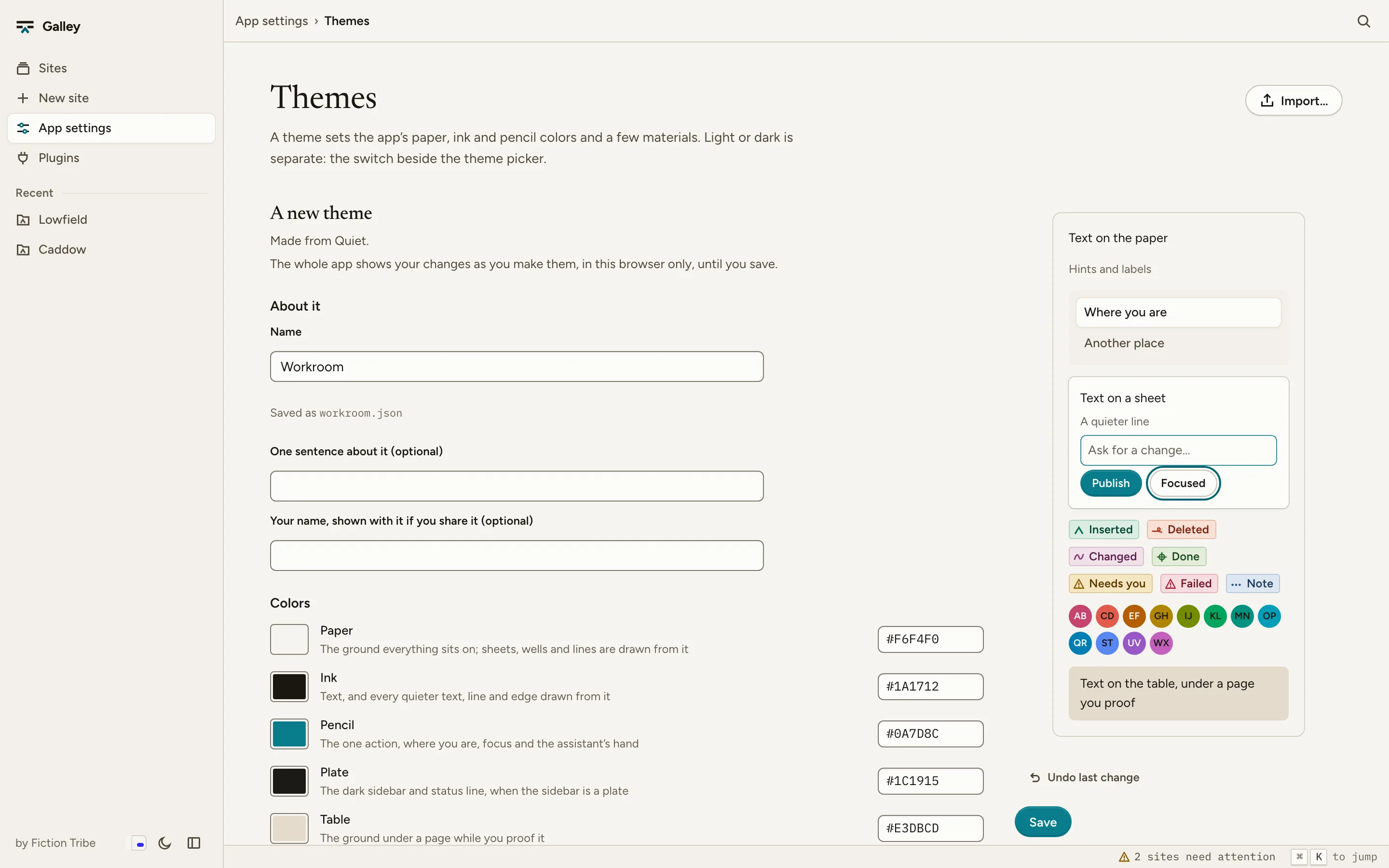
  4. Give it a Name, then change a colour: pick one, or type its value. Here the Pencil, the colour of the one action and of where you are.

    You’ll see: The whole app shows your changes as you make them, in this browser only, until you save.

    A new theme, made from Quiet and named Workroom: under Colors, Paper, Ink, Pencil, Plate and Table, each with a swatch and its value, the Pencil set to #0A7D8C; on the right a sample of the app in the theme, its Publish button now in that colour, with Undo last change and Save.
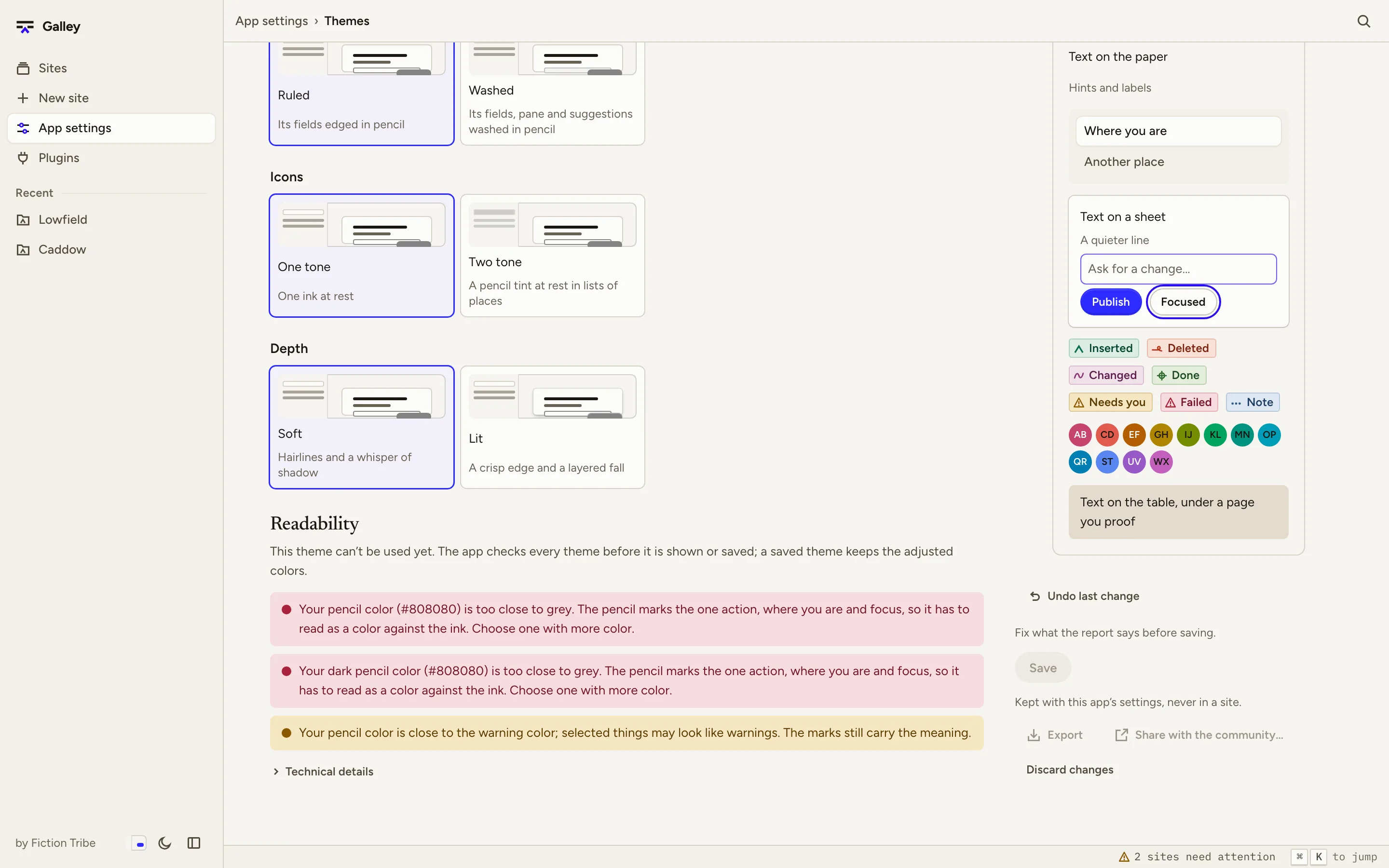
  5. Scroll down to Readability and read it before you save.

    You’ll see: A colour that can’t work is refused in plain words — here a pencil too close to grey — and Save waits until it is fixed. A smaller fault is put right for you, and the report says what was changed.

    The foot of the theme editor, at Readability: This theme can’t be used yet, then Your pencil color (#808080) is too close to grey, said for light and for dark, and a note that it is close to the warning colour; on the right, Fix what the report says before saving, with Save greyed out.
  6. Press Save, then Done. To take the theme somewhere else, press Export beside it.

    You’ll see: The theme is in use straight away, and kept with this app’s settings, never in a site. Export saves it as a small file, here workroom.json.

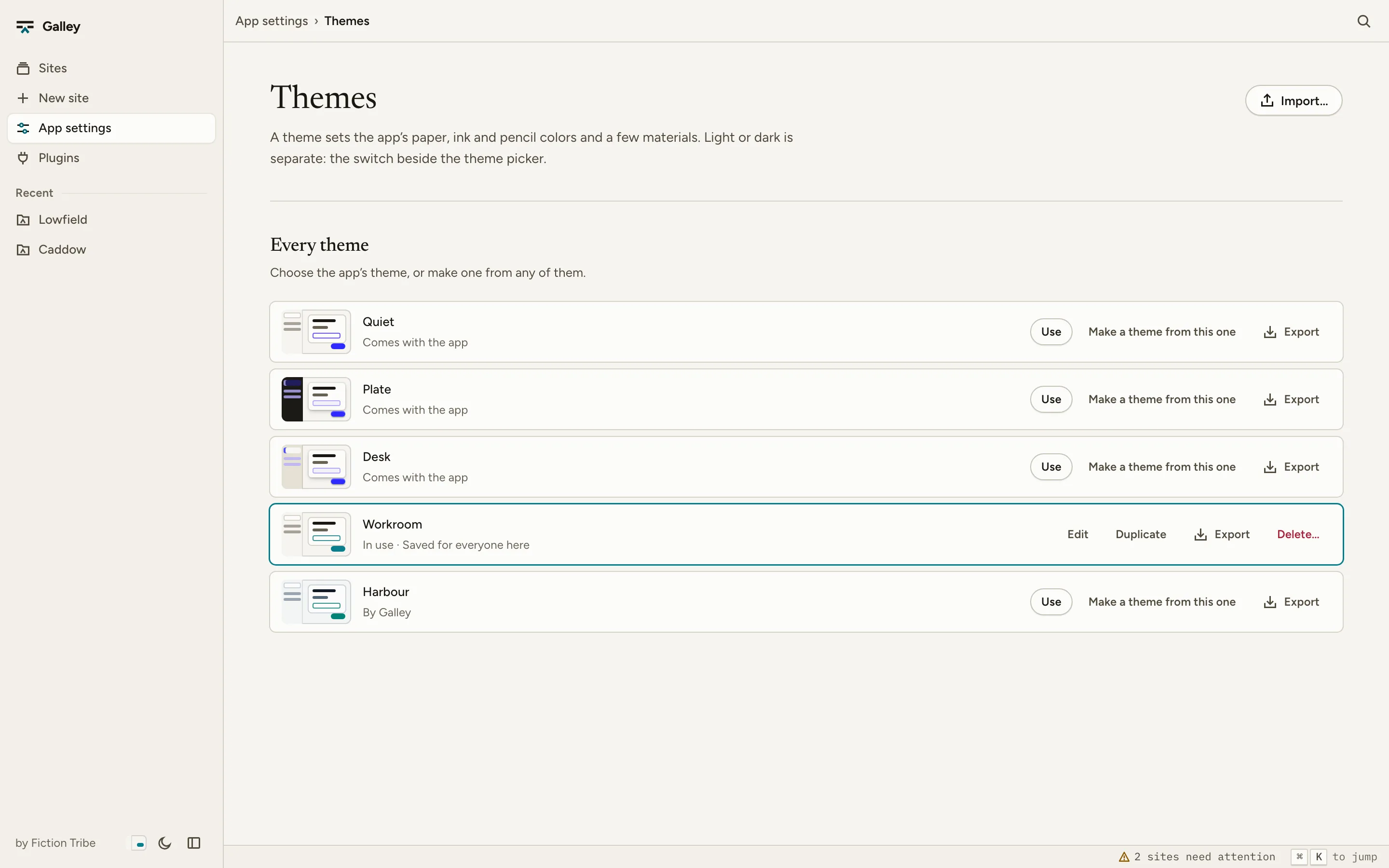
    Themes after saving: Workroom in the list of every theme, marked In use, with Edit, Duplicate, Export and Delete…; the app's own marks are now in its colour.
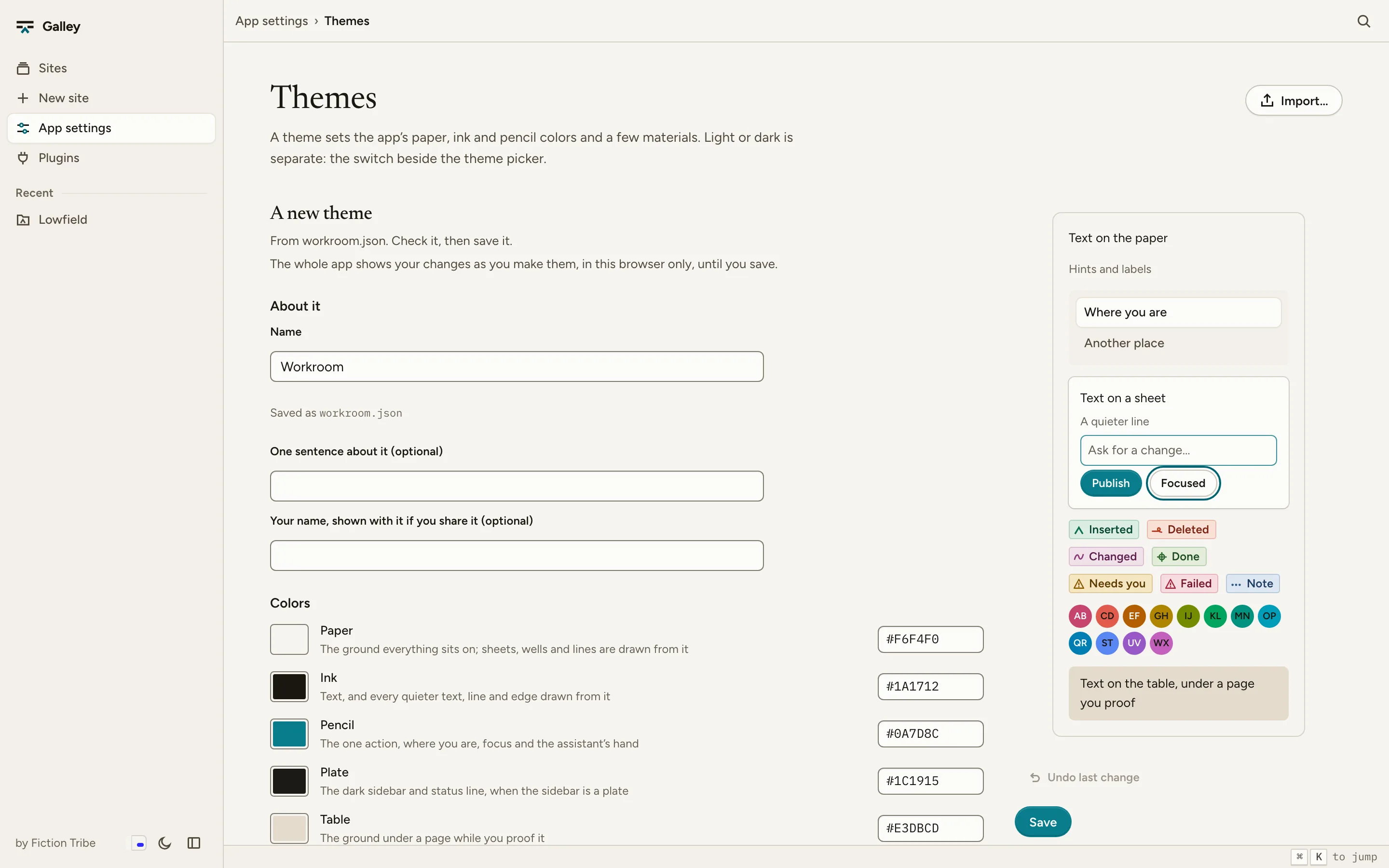
  7. In the other Galley, open App settings › Themes, press Import… and choose the file. Check it, then press Save.

    You’ll see: The same check runs there before anything is added.
    Another Galley's Themes screen after Import…: A new theme, From workroom.json. Check it, then save it., with the name Workroom, its colours, the sample beside them and Save.