Change a page in the form

Retype any words on a page in its form and see the change on the page before anyone else does.

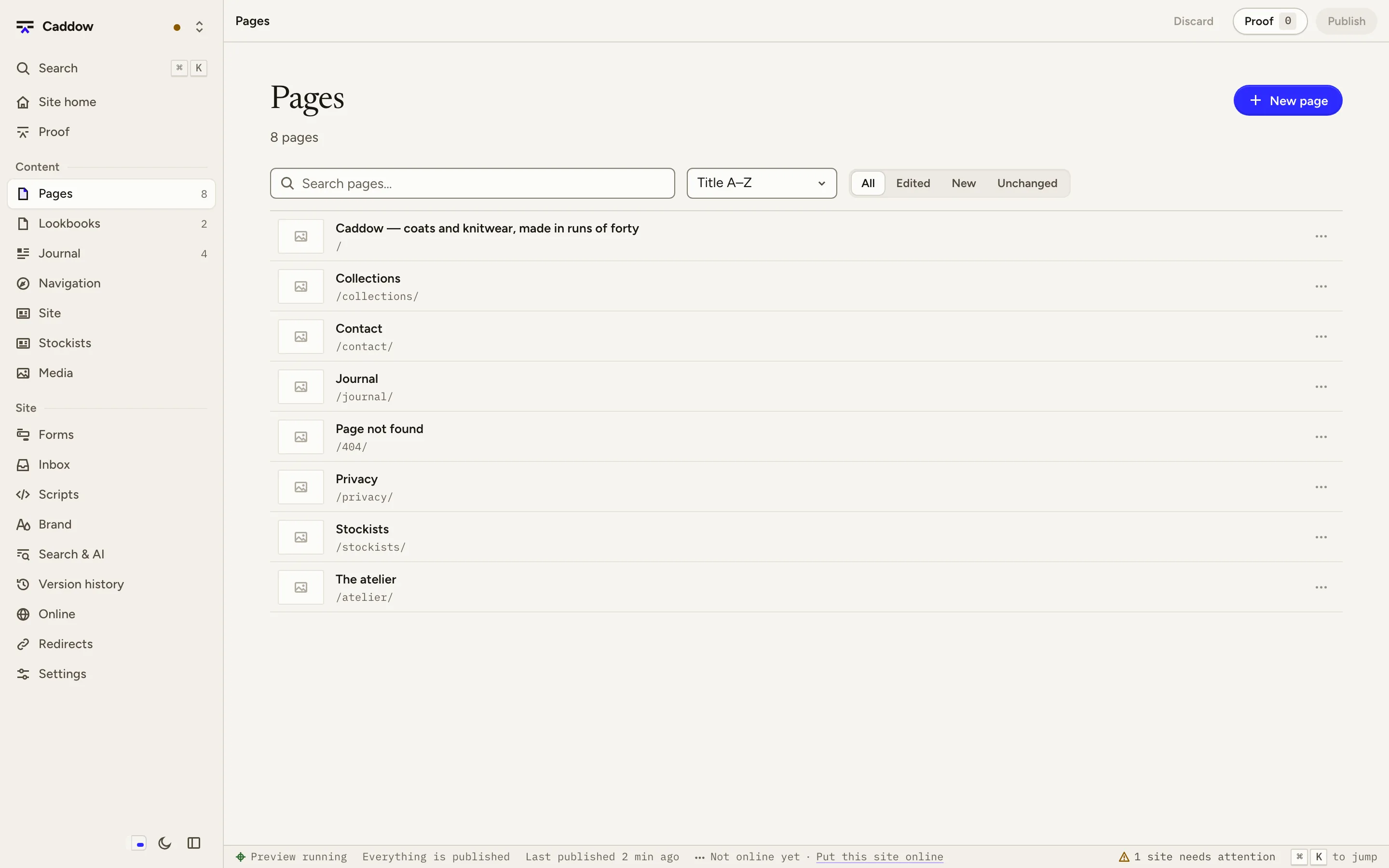
  1. Open Pages in the sidebar and choose the page — here The atelier.

    The Pages list for Caddow: eight pages by title and address — the home page, Collections, Contact, Journal, Page not found, Privacy, Stockists and The atelier — with Search pages, a sort, and All, Edited, New and Unchanged.
  2. In the form on the left, click the section — Photo and text — to open its fields, and find Heading.

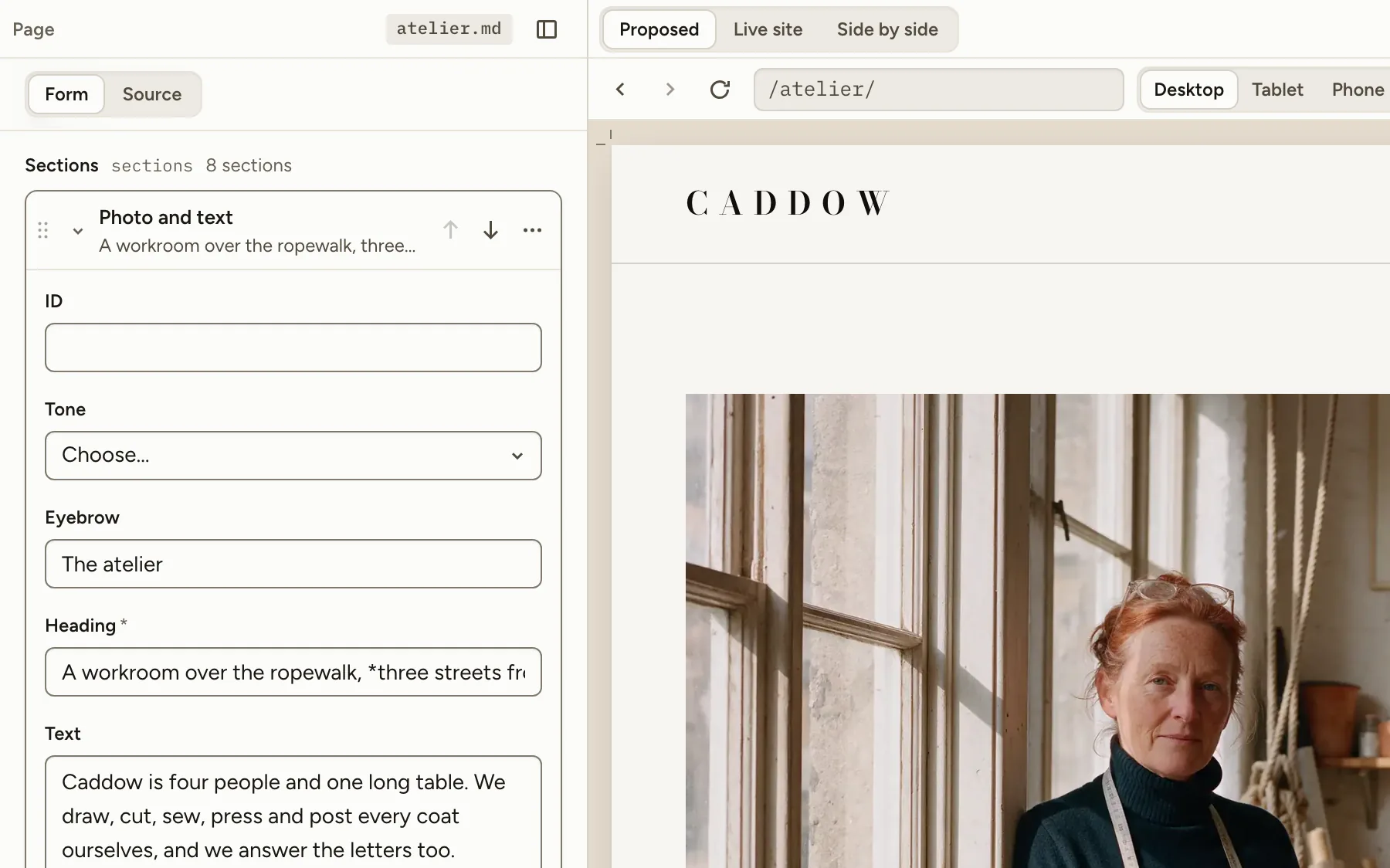
    The editor on The atelier: in the form, the section Photo and text opened to show its fields — ID, Tone, Eyebrow and Heading, whose words are “A workroom over the ropewalk, *three streets from the sea*.” — beside the page.
  3. Type. The asterisks around words make them italic, as they are on the page.

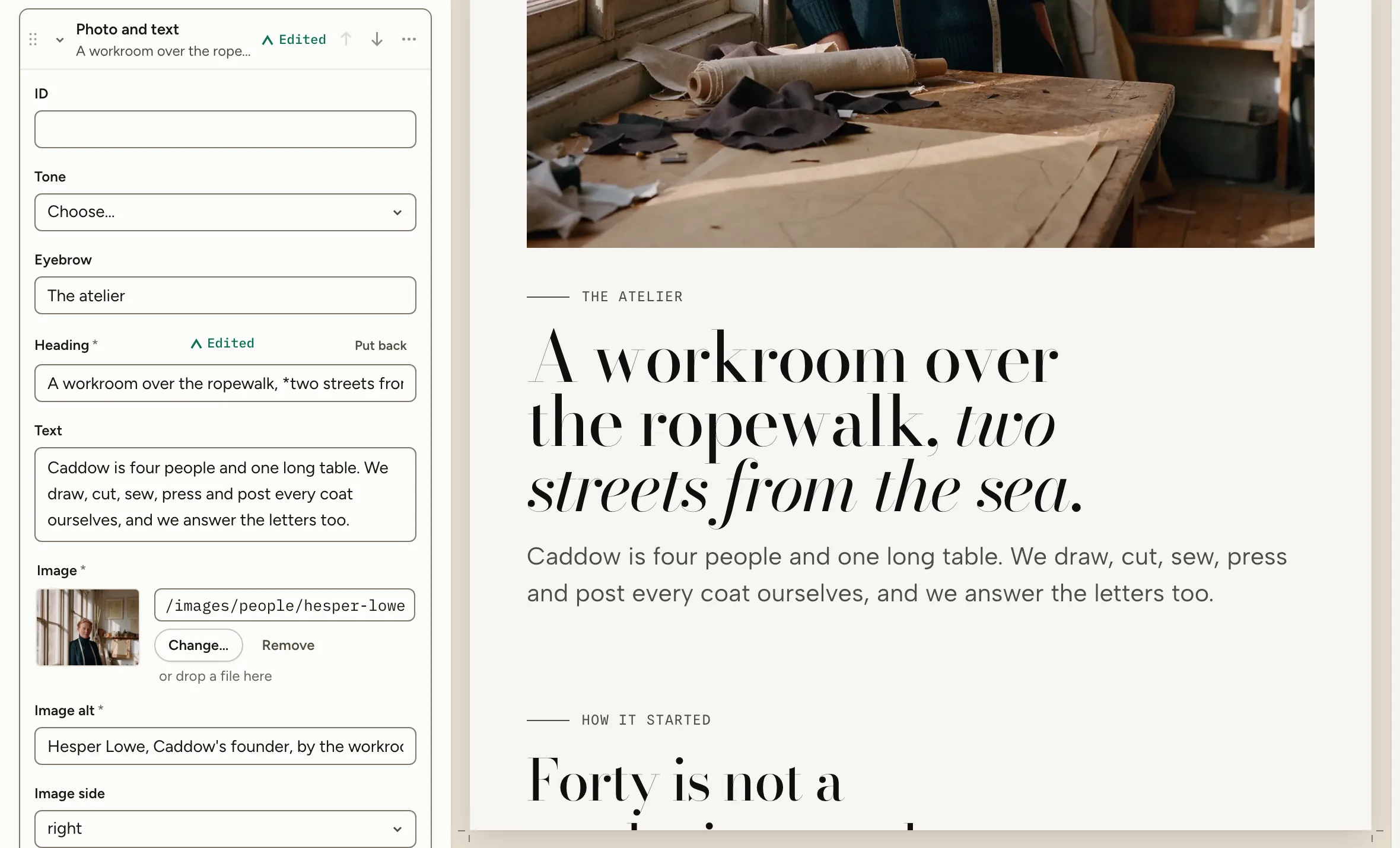
    You’ll see: The change is saved as you type: the field shows Edited, the page shows it a moment later, and Put back returns it to what is published.

    The Heading field marked Edited with a Put back button, now reading “A workroom over the ropewalk, *two streets from the sea*.”, and beside it the page showing the new heading: A workroom over the ropewalk, two streets from the sea.
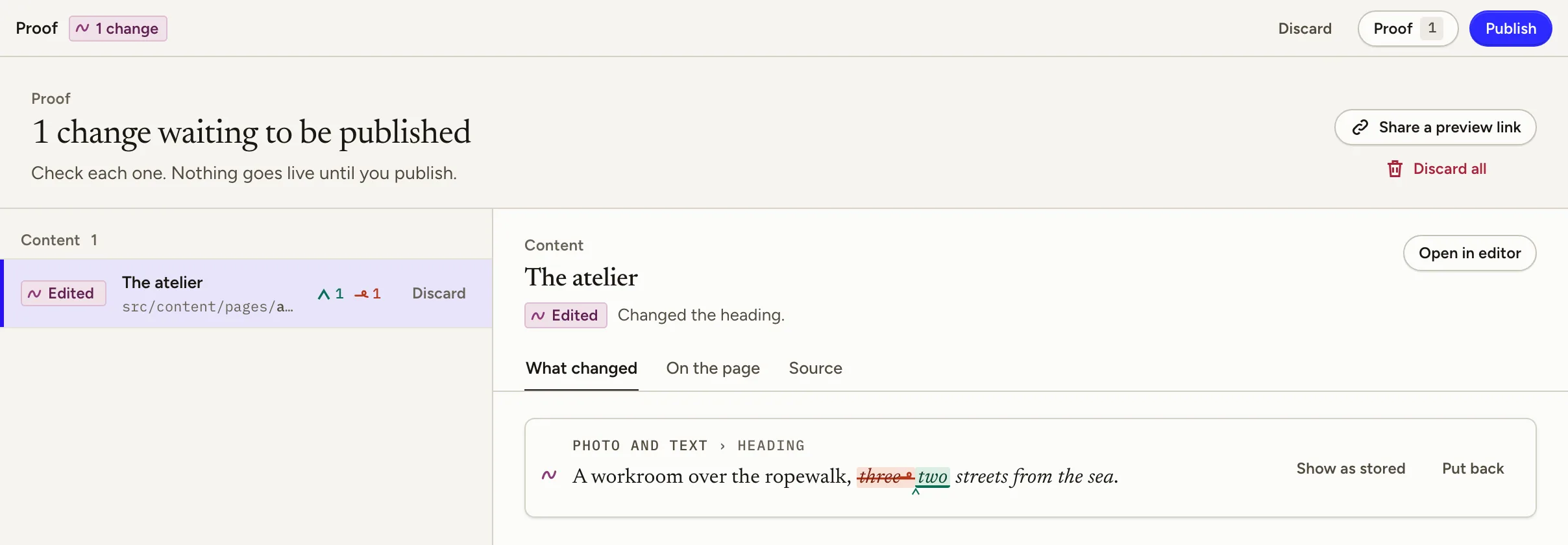
  4. Press Proof in the top bar to see the change waiting, in the page's own words.

    You’ll see: Nothing is live until someone presses Publish.
    Proof with 1 change waiting to be published: The atelier, Edited — Changed the heading; under What changed, Photo and text › Heading with three struck through and two written in, beside Show as stored and Put back.