Put the site online
Give the site a real address on Cloudflare, then your own domain.
These pictures were made against a stand-in for Cloudflare, so the addresses in them, caddow.example-studio.workers.dev and www.caddow.example, are made up.
Before you start A Cloudflare account and an access key from it.
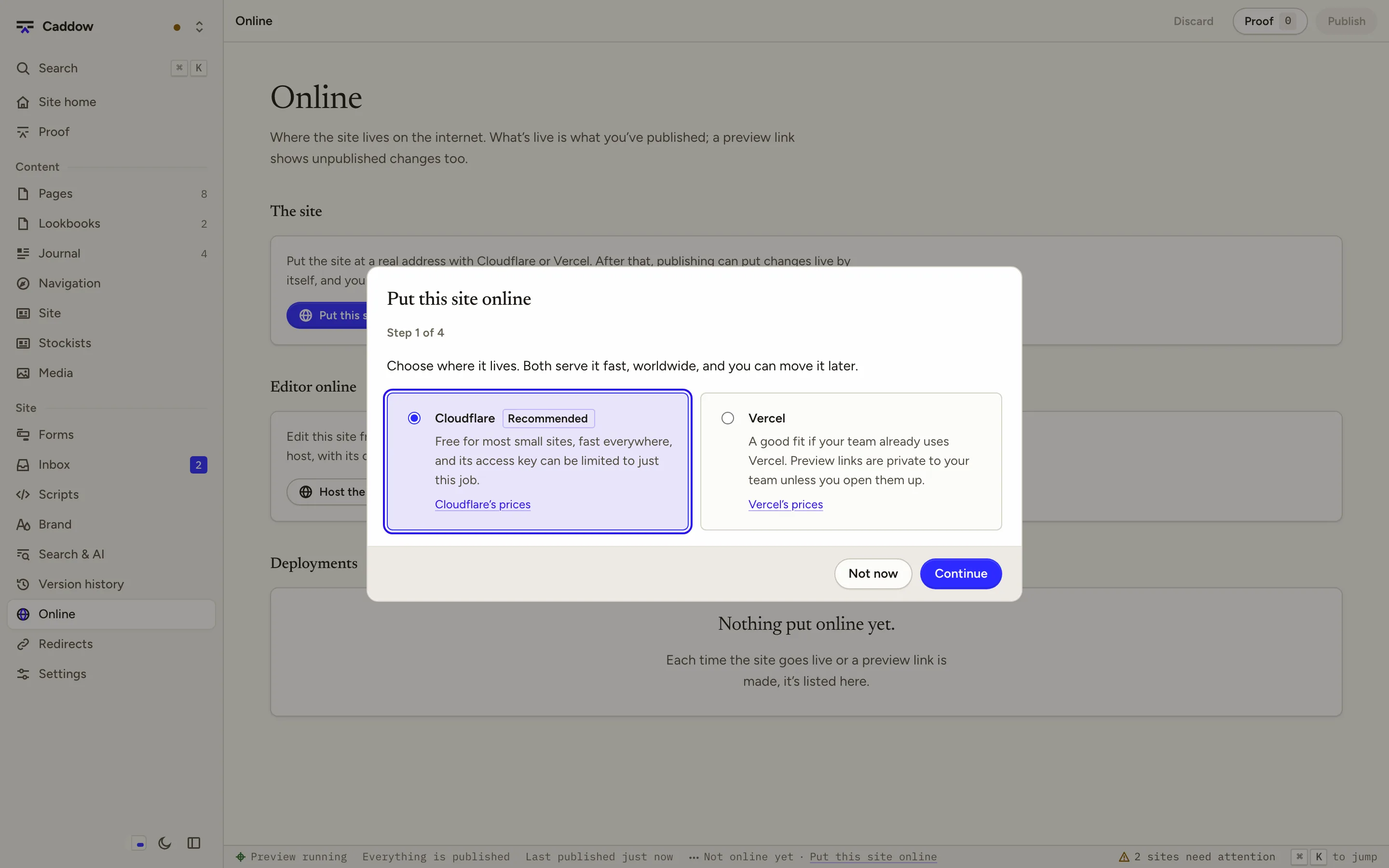
Open Online in the sidebar and press Put this site online. Choose Cloudflare and press Continue.
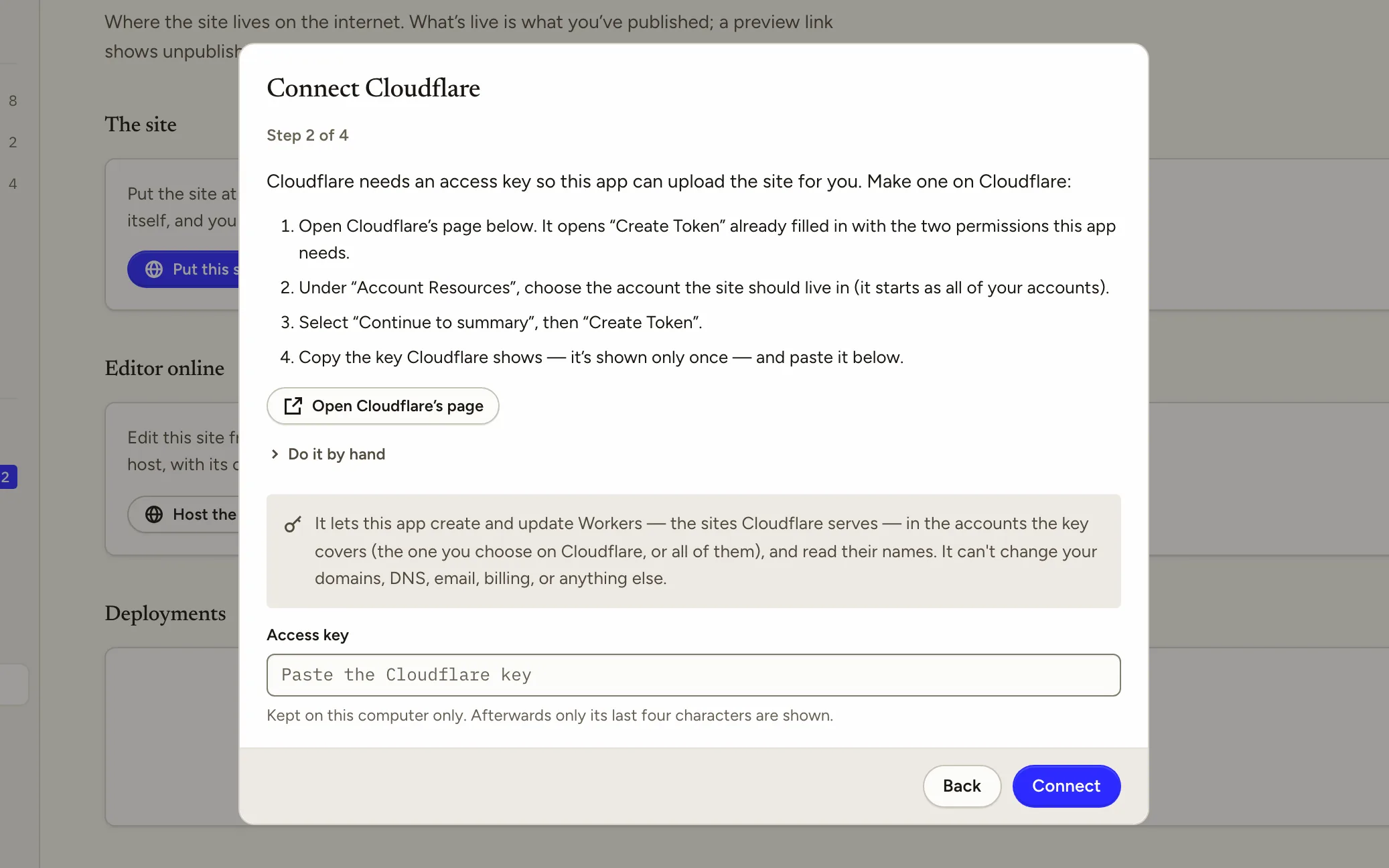
Press Open Cloudflare's page, make the key there as the window says, paste it in Access key and press Connect.
You’ll see: The key is checked with Cloudflare before it is saved, and kept on this computer only.
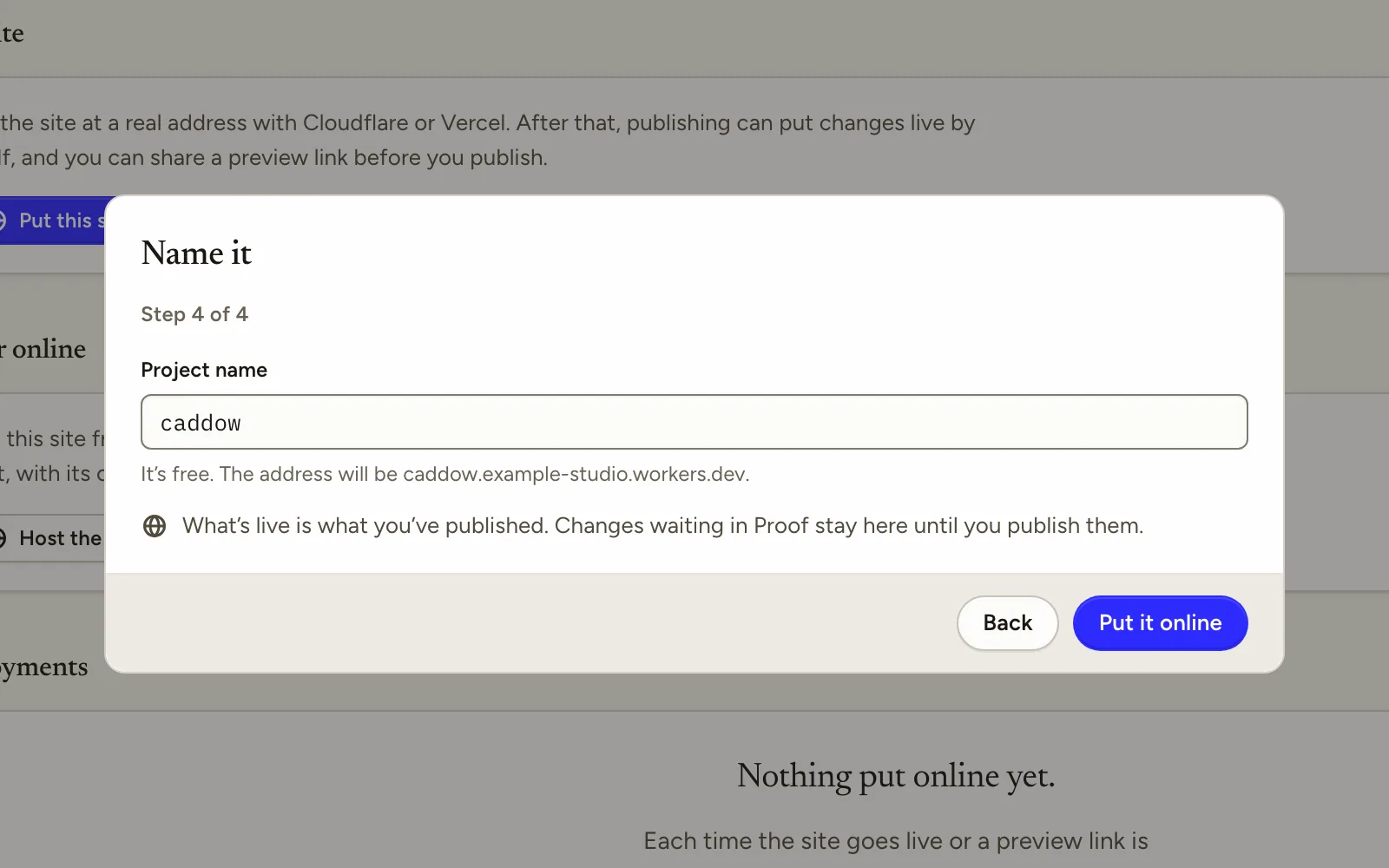
Choose the account, then name it — the name becomes part of the address — and press Put it online.
You’ll see: What goes live is the last published version; changes waiting in Proof stay here.
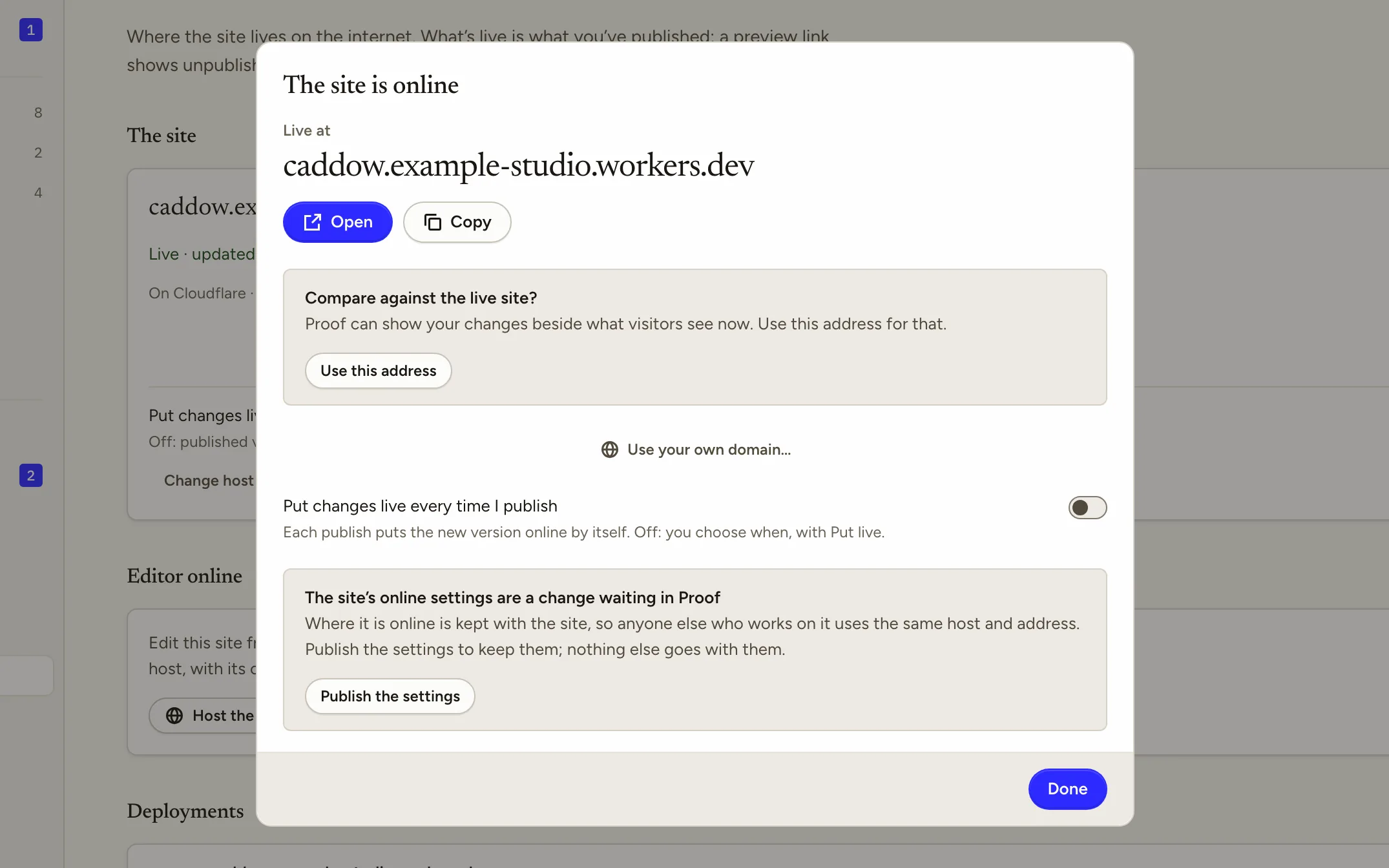
Press Open to see it. Put changes live every time I publish makes each publish go live by itself.
You’ll see: Where the site is online is kept with the site, as a change waiting in Proof: Publish the settings keeps them, so anyone else who works on it uses the same host and address.
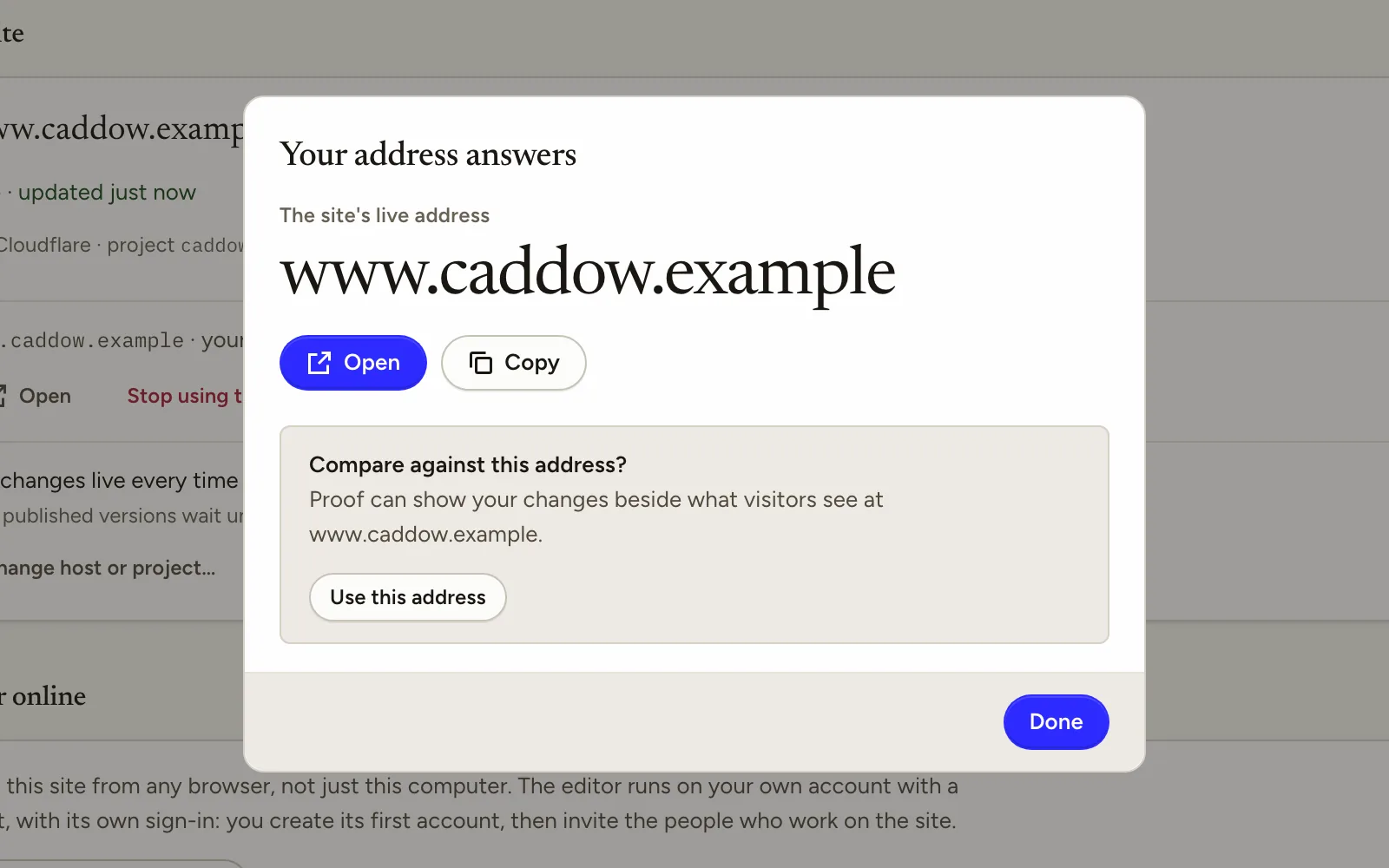
To use your own domain, press Use your own domain…, type the address — www.caddow.example here — press Check, read what will change, then Use this address.
You’ll see: Cloudflare answers the address with the site and sets up its certificate; it can take a few minutes, and nothing else on the domain changes.