Documentation › Edit a site
Check and publish
Proof lists every change waiting to be published, marked up beside the live site; put back what you don't want, then publish the rest.
Step by step, with pictures:Check, publish and undo
For people who edit a site. Every change — yours, a colleague's, the assistant's — waits in Proof until someone presses Publish.
Link to this section: Check your changes
- Press Proof in the top bar (its number is how many changes are waiting).
- The list on the left has one row per page or file: Edited, New or Deleted, with how much changed. Choose one.
- What changed shows each field in the site's own words — the section and field, the old words struck through and the new ones written in.
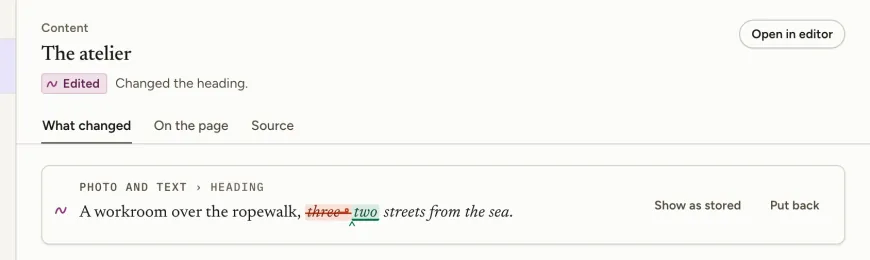
- On the page shows the page with your changes beside the live site — once the site's live or staging address is set in Settings › Addresses. Until then it says No live site to compare with. Source shows the file itself.
Link to this section: Put back what you don't want
- Put back, beside a field, undoes just that change.
- Discard, on a row, throws away every change to that page.
- Discard all throws away everything waiting. It asks first — Discard 8 changes? — and says what goes; what's already published stays.
Link to this section: Publish
- Press Publish in the top bar.
- Check the window: Note for version history is one line in plain words (with an assistant key set, it suggests one). Under What goes, untick anything you'd rather keep back.
- Press Publish 3 changes (the number is yours). Not yet closes the window and publishes nothing.
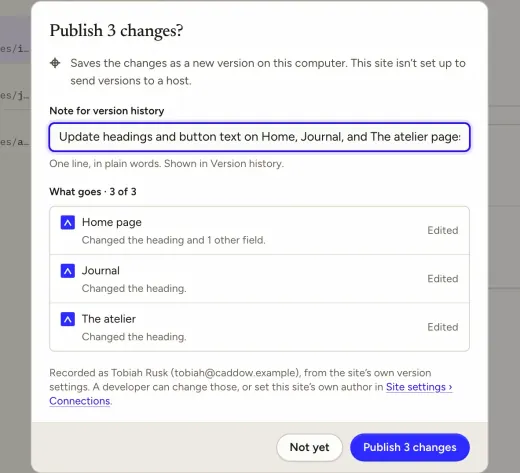
What happens next depends on how the site is set up, and the window says which:
- Published — the changes are live; the site usually updates within a minute.
- Published on this computer — saved as a new version here; the site isn't set up to send versions to a host yet. Put the site online to give it an address.
- Sent for review — on sites set to Send for review, a developer approves the changes before they go live. The button reads Send for review.
Every publish is a version you can undo: Undo a publish.
Link to this section: Share before you publish
On a site that is online, Share a preview link puts the site as it is now — your changes included — at an address of its own, without touching the live site.
Link to this section: If something's different
- "Couldn't publish." Your changes are safe here. The window says why; Try again once it's fixed.
- "Saved, not live yet." The new version is saved here but didn't reach the site's host. The status bar offers Send now when it can.
- "Publishing is paused." The repository has newer versions: someone published from elsewhere. Publishing waits so nothing is overwritten; press Get the latest, then publish again.
- "Publishing is paused", naming a page. The newer versions change a page you have changed too, and Galley can't join the two. Getting the latest would be refused for the same reason, so the window offers Review in Proof instead: discard your change to that page (Proof shows it, so you can copy what you wrote first), get the latest versions, then make the change again.
- "Nothing to publish." Everything already matches the live site.